
Allow Pop-ups for SHIELD
Configure your browser to allow pop-ups and redirects from SHIELD so the application loads correctly after sign-in.
Overview
SHIELD uses pop-ups and redirects as part of its authentication flow. If your browser blocks these by default, the application may fail to load after signing in. This guide walks you through enabling pop-ups for SHIELD in Chrome.
This is a one-time browser configuration. Once allowed, SHIELD will load correctly on every subsequent visit.
Prerequisites
-
Google Chrome browser (steps may vary slightly for other browsers)
-
Access to your SHIELD URL (e.g.,
https://app.shieldmi.com)
Steps
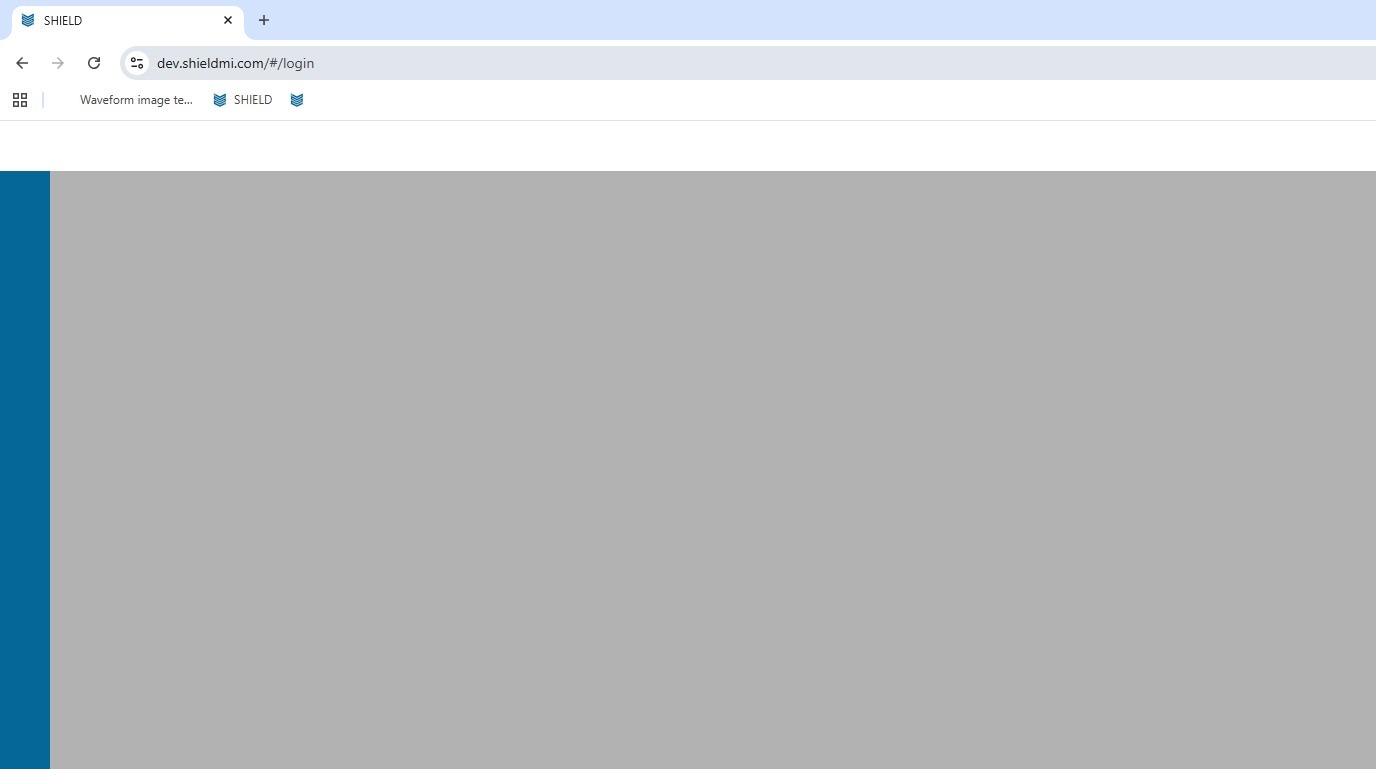
Open SHIELD
Navigate to your SHIELD URL in Chrome. You will land on the login page at a URL ending in /#/login.
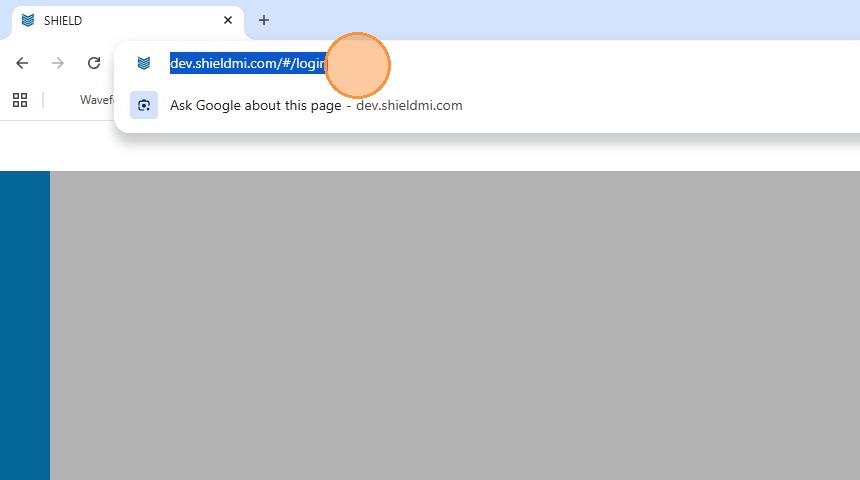
Remove the Login Path from the URL
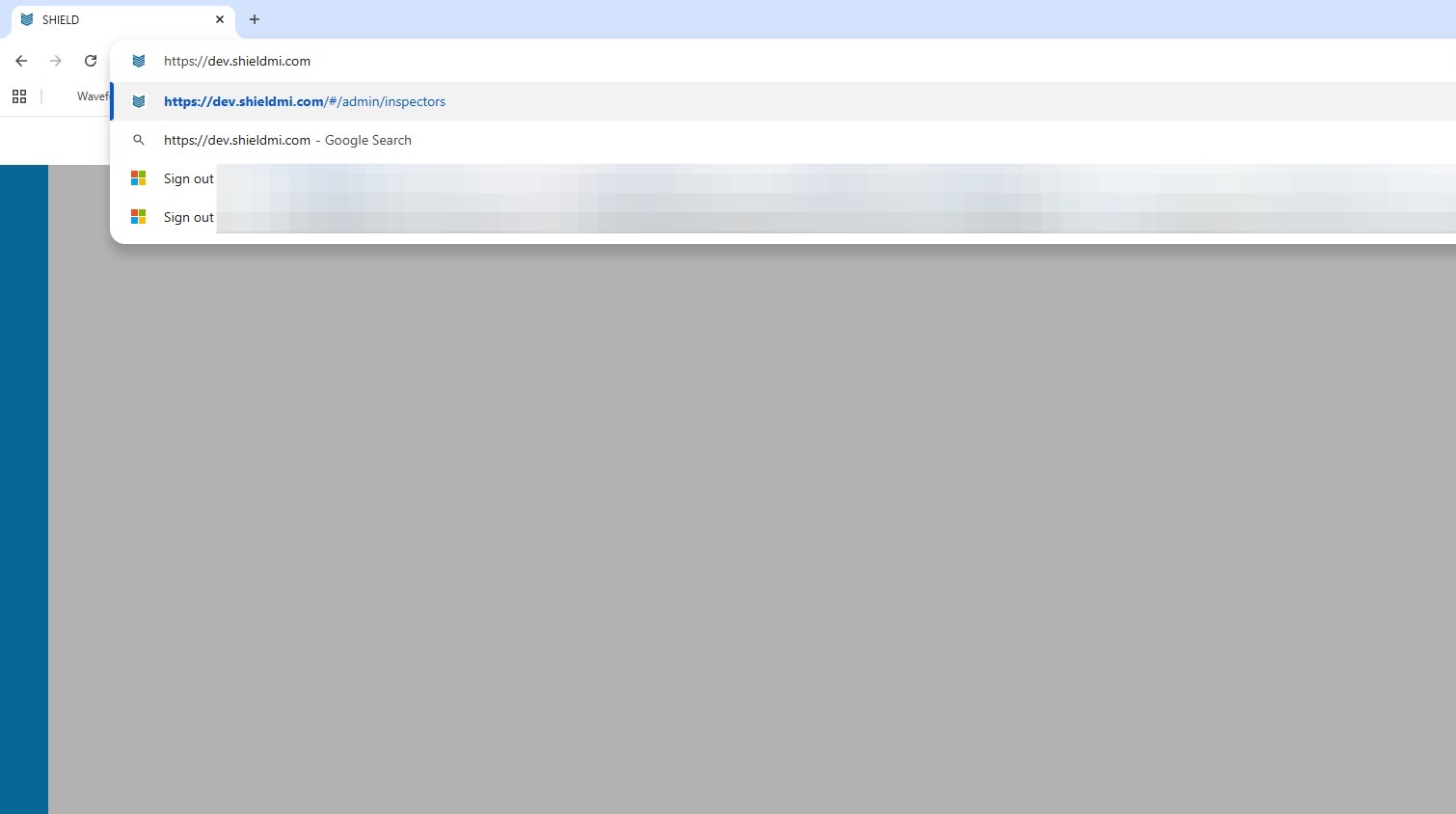
Click into the browser address bar and delete the /#/login portion from the end of the URL, leaving only the base domain (e.g., https://app.shieldmi.com).
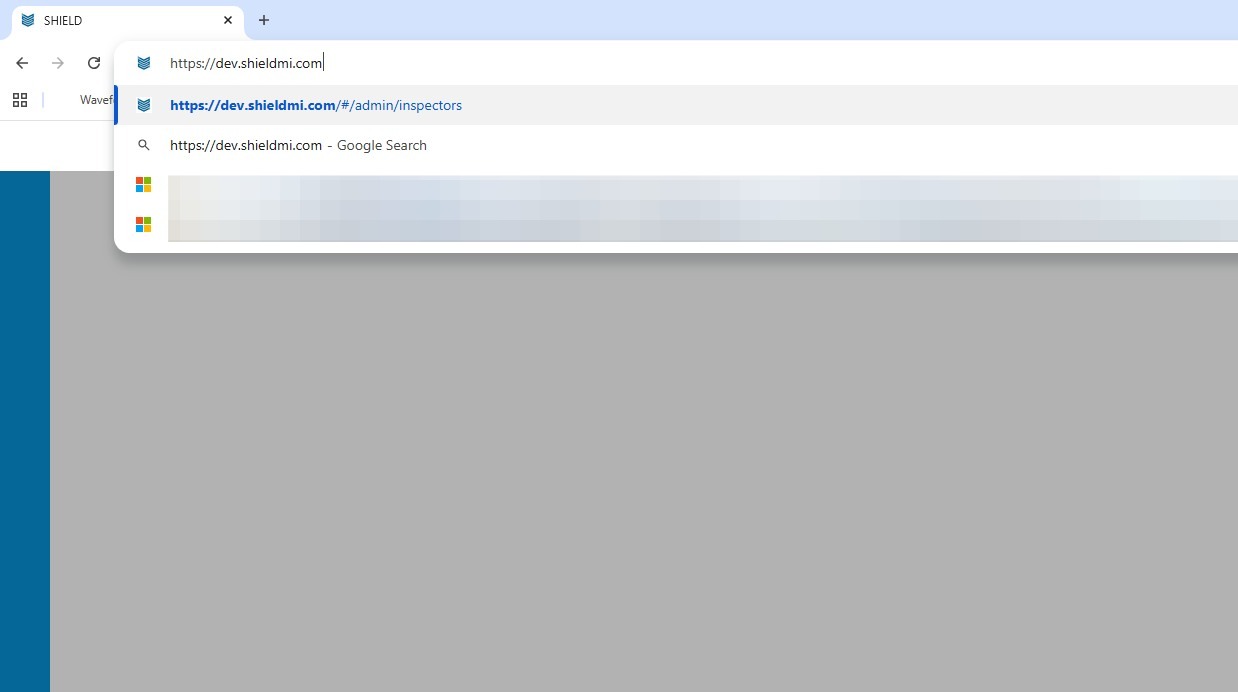
Press Enter to Load the Base URL
Press Enter to navigate to the base domain. Chrome will attempt to load the page and trigger the pop-up block notification in the address bar.
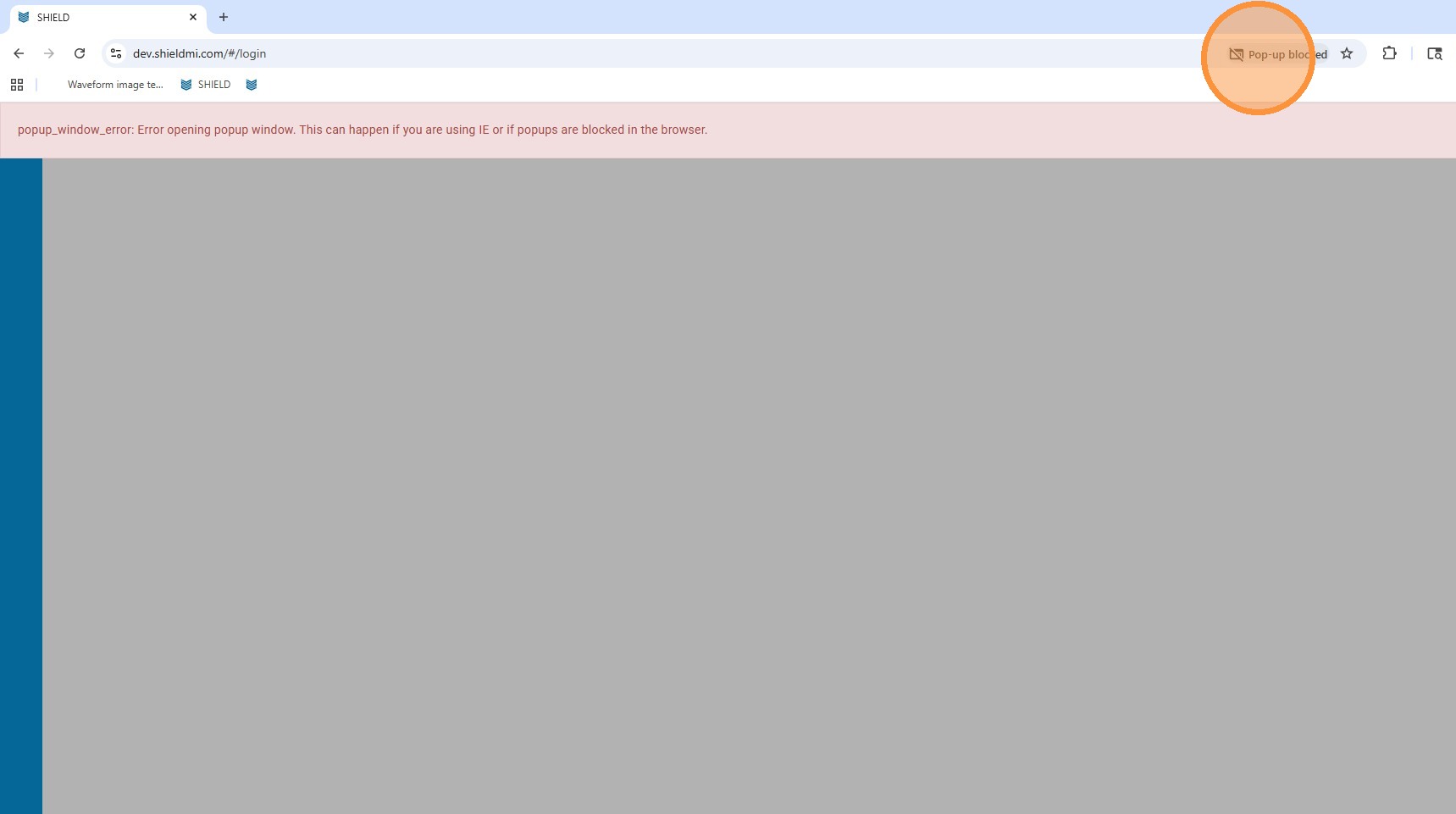
Click the Pop-up Blocked Icon
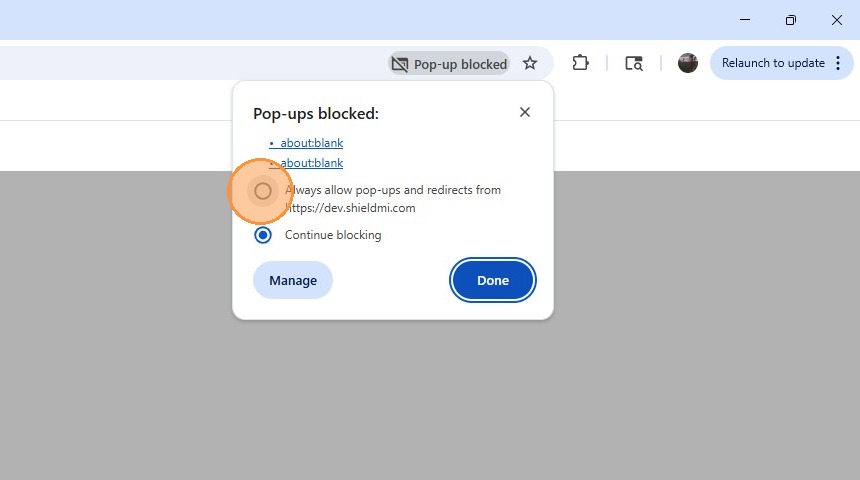
Look for the Pop-up blocked icon in the top-right corner of the Chrome address bar. Click it to open the pop-up permission prompt.
Allow Pop-ups from SHIELD
Select "Always allow pop-ups and redirects fromhttps://shieldmi.com" from the prompt. This grants permanent permission so you won't need to repeat this step.
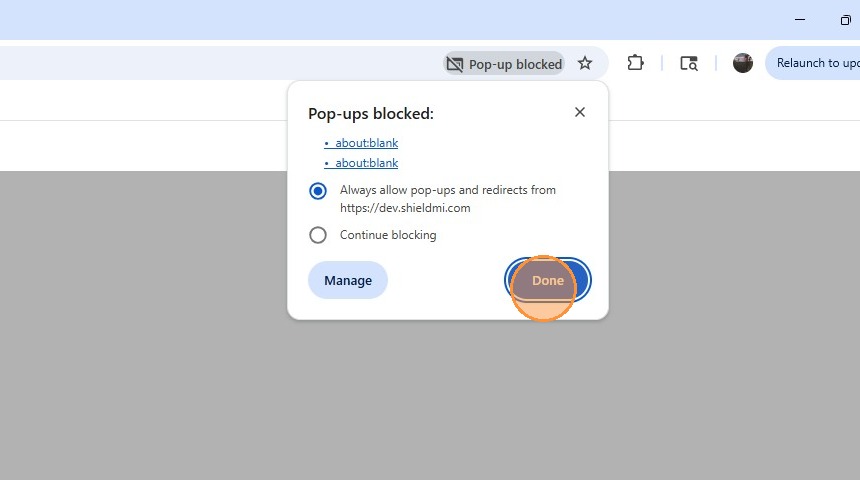
Click Done
Click Done to save the browser permission and dismiss the prompt.
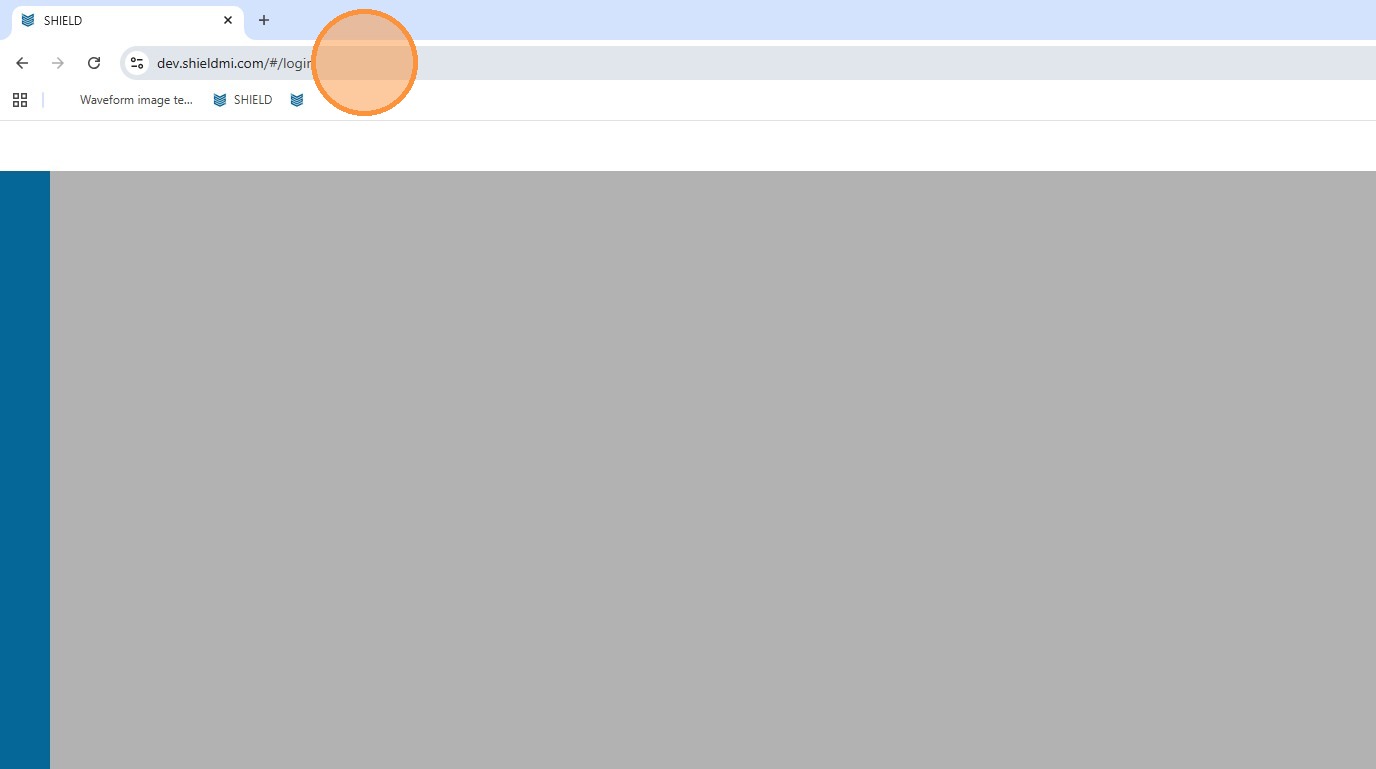
Click the Address Bar Again
Click back into the browser address bar. The page needs to be reloaded from the base domain to apply the new pop-up permission.
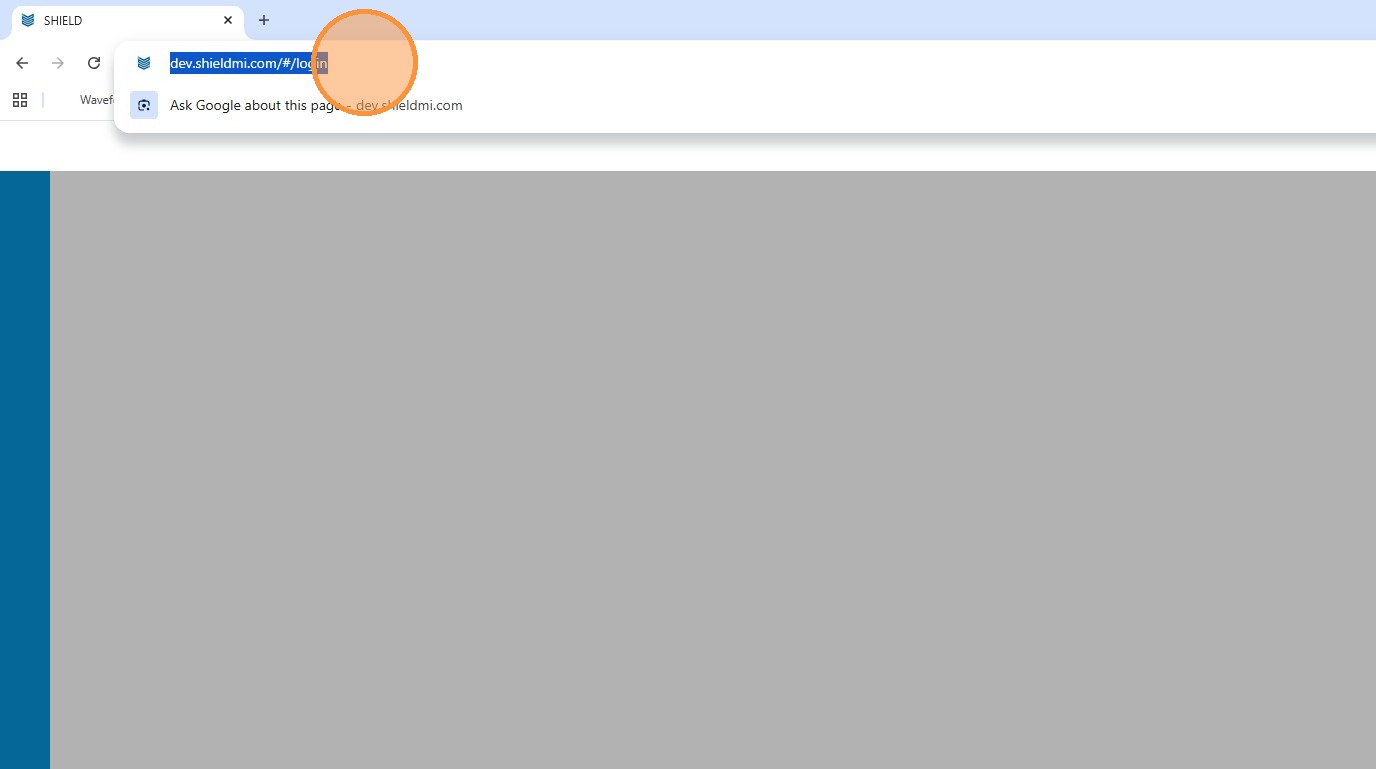
Remove the Login Path Again
Delete /#/login from the end of the URL, leaving only the base domain. This ensures the page reloads cleanly with pop-ups now permitted.
Press Enter to Reload
Press Enter to reload from the base URL. SHIELD should now redirect correctly to the login screen without being blocked.
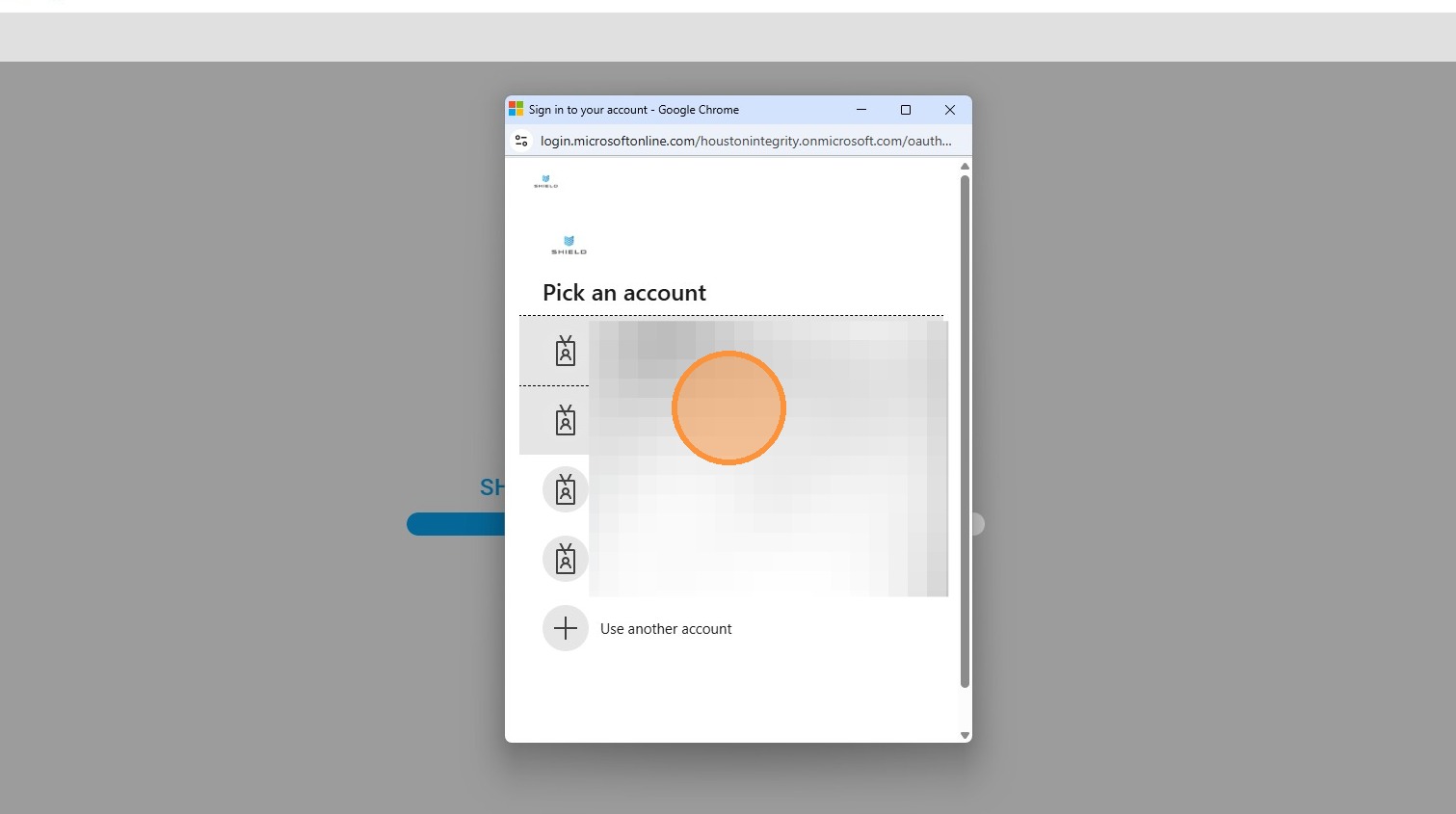
Sign In to Your Account
Enter your SHIELD credentials and sign in. The application should load fully after authentication completes.
Troubleshooting
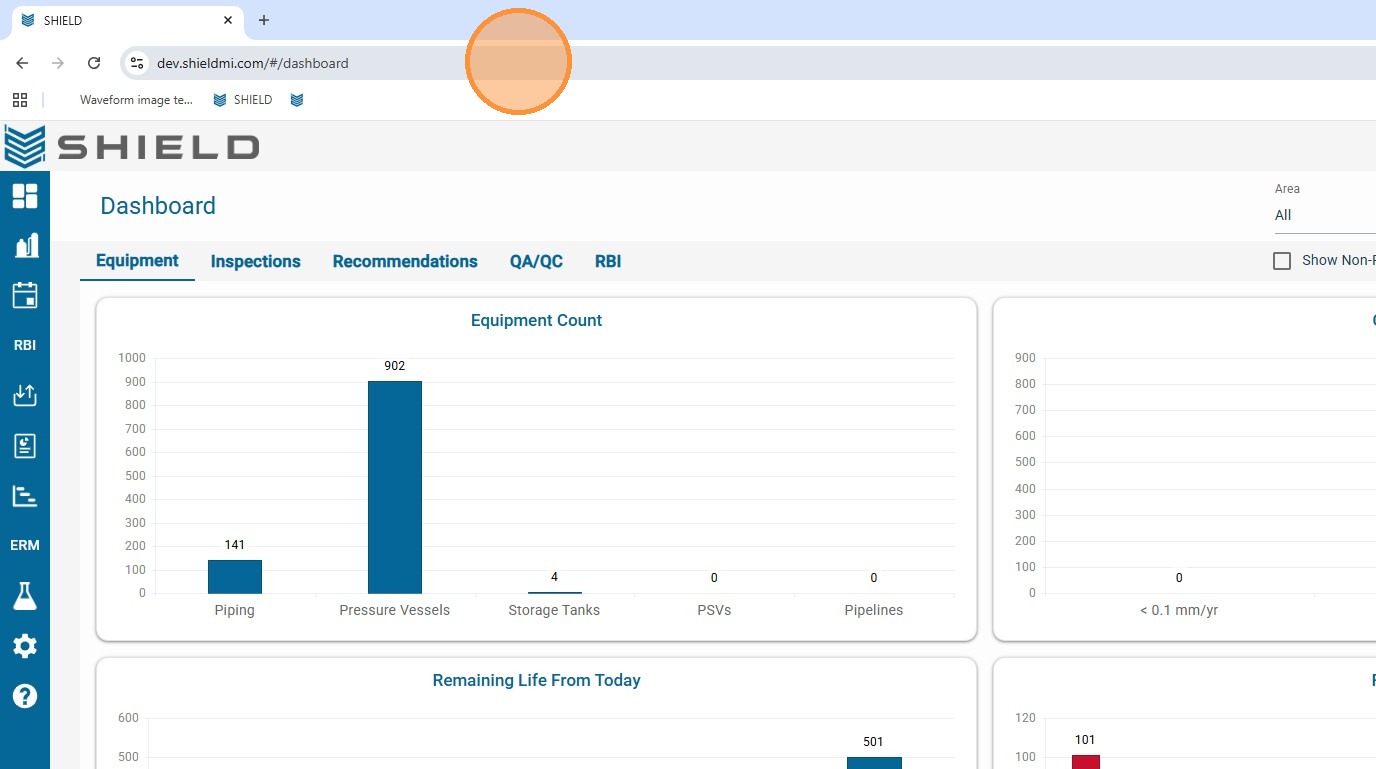
SHIELD doesn't load after signing in? If the page stalls after authentication, the URL may have updated to /#/dashboard. Remove that path from the address bar and press Enter to reload.
| Symptom | Cause | Fix |
|---|---|---|
| Pop-up blocked icon not visible | Browser blocked it silently | Go to Chrome Settings → Privacy → Site Settings → Pop-ups and allow SHIELD's URL manually |
| Page reloads to login but won't progress | Pop-up permission not saved | Repeat Steps 4–6 and confirm Done was clicked |
| Blank screen after sign-in | /#/dashboard appended to URL | Remove /#/dashboard from the URL and press Enter |
| Permission reverts after browser update | Chrome reset site settings | Repeat the allow step; add SHIELD to Chrome's managed exceptions |