
Delete Component
Permanently remove a component from an asset record in SHIELD.
Overview
Use this guide to delete a component from an asset. Deletion is permanent and also removes all Corrosion Measurement Locations (CMLs) and CML history records associated with that component.
Deleting a component cannot be undone. All CMLs and CML measurement history linked to this component will be permanently deleted along with it.
If you need to retain any CML records, reassign them to a different component before proceeding. Once the component is deleted, that historical data cannot be recovered.
Before You Delete
Review the following before proceeding:
| Check | Action if True |
|---|---|
| Component has active CMLs | Reassign CMLs to another component before deleting |
| Component has historical thickness readings | Reassign CMLs to preserve measurement history |
| Component is referenced in open inspection tasks | Close or reassign those tasks first |
Steps
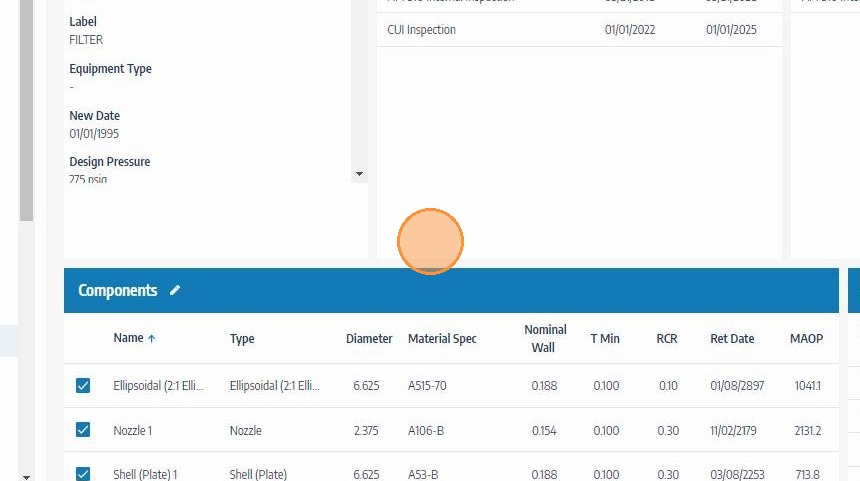
Navigate to the Asset
Go to the Assets module and open the asset containing the component you want to delete. Confirm you are on the correct asset before proceeding.
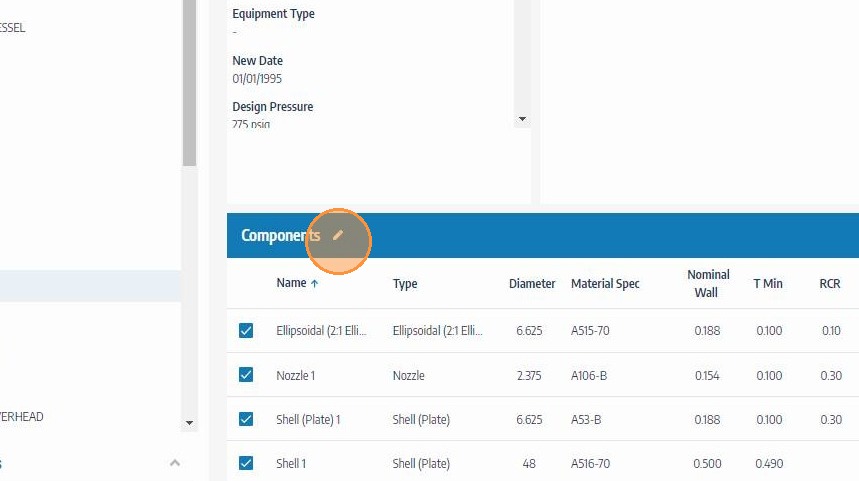
Click the Edit Icon on the Components Header
Click the edit icon on the Components section header to enter components editing mode and unlock the table for modifications.
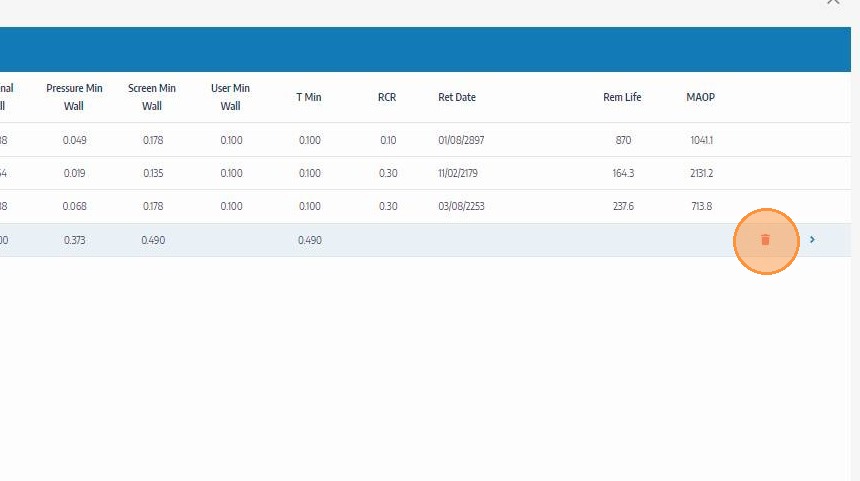
Click the Delete Icon for the Component
Locate the component you want to remove and click its delete icon. A confirmation prompt will appear before the deletion is finalized.
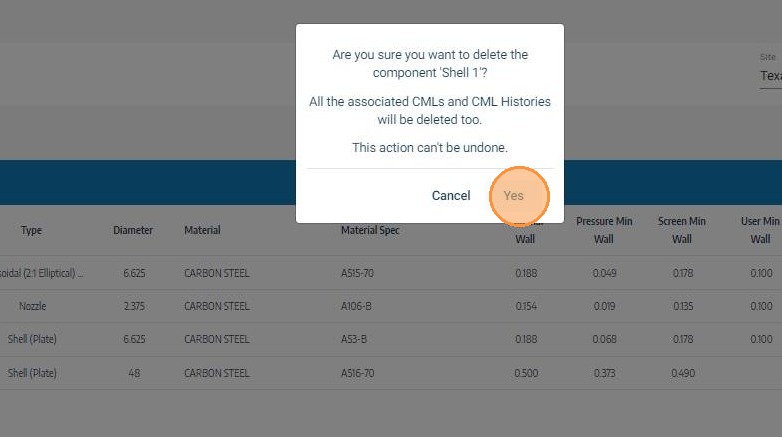
Confirm the Deletion
Review the confirmation prompt carefully. Clicking Confirm will permanently delete the component and all associated CMLs and CML history. If you have not yet reassigned CMLs you want to keep, click Cancel and complete that step first.
Troubleshooting
| Symptom | Cause | Fix |
|---|---|---|
| Delete icon not visible | Components editing mode not activated | Click the edit icon on the Components header before attempting to delete |
| Need to recover deleted CML data | Deletion cannot be undone | CML history cannot be recovered once deleted — contact your administrator to confirm backup options |
| Component still showing after deletion | Page not refreshed | Refresh the asset record to confirm the component has been removed |