
Edit TaskMaster Methods
Update the name or equipment type scope of an existing TaskMaster inspection method in SHIELD.
Overview
Use this guide to edit an existing TaskMaster method — for example, to correct a method name, standardize terminology, or add and remove equipment type associations. Changes to a method's asset type scope take effect immediately and will update which schedules the method is available for.
Changing a method name will update how it appears on all existing TaskMaster schedules and generated tasks that reference it. Confirm the new name aligns with your organization's standard terminology before saving.
Steps
Navigate to the Methods Menu and Select the Method to Edit
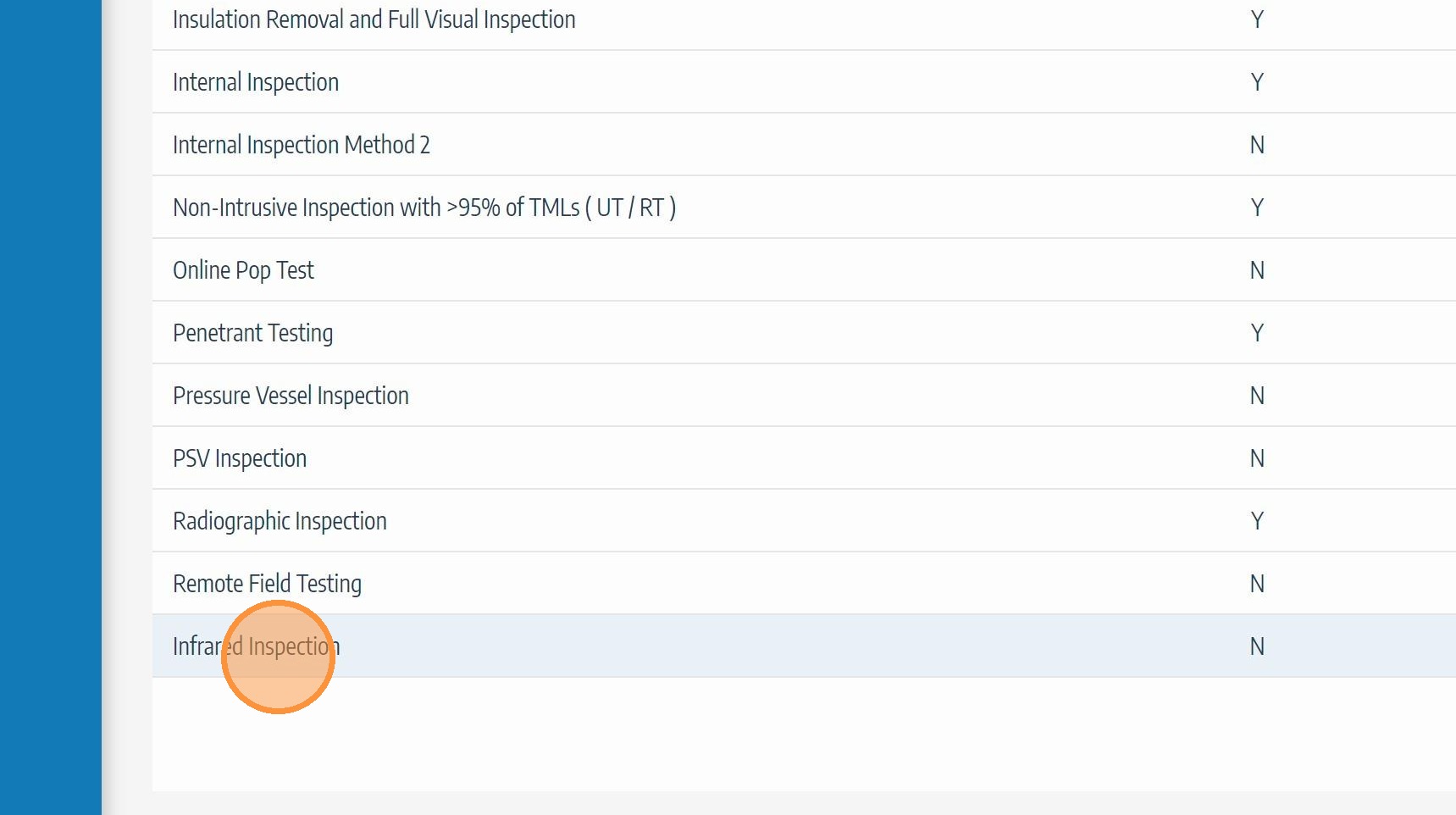
Go to Admin Settings → TaskMaster → Methods to open the Methods list. Locate the method you want to update and click on it to open its edit form. If you need navigation help, see Accessing TaskMaster Methods Menu.
Edit the Method Name if Required
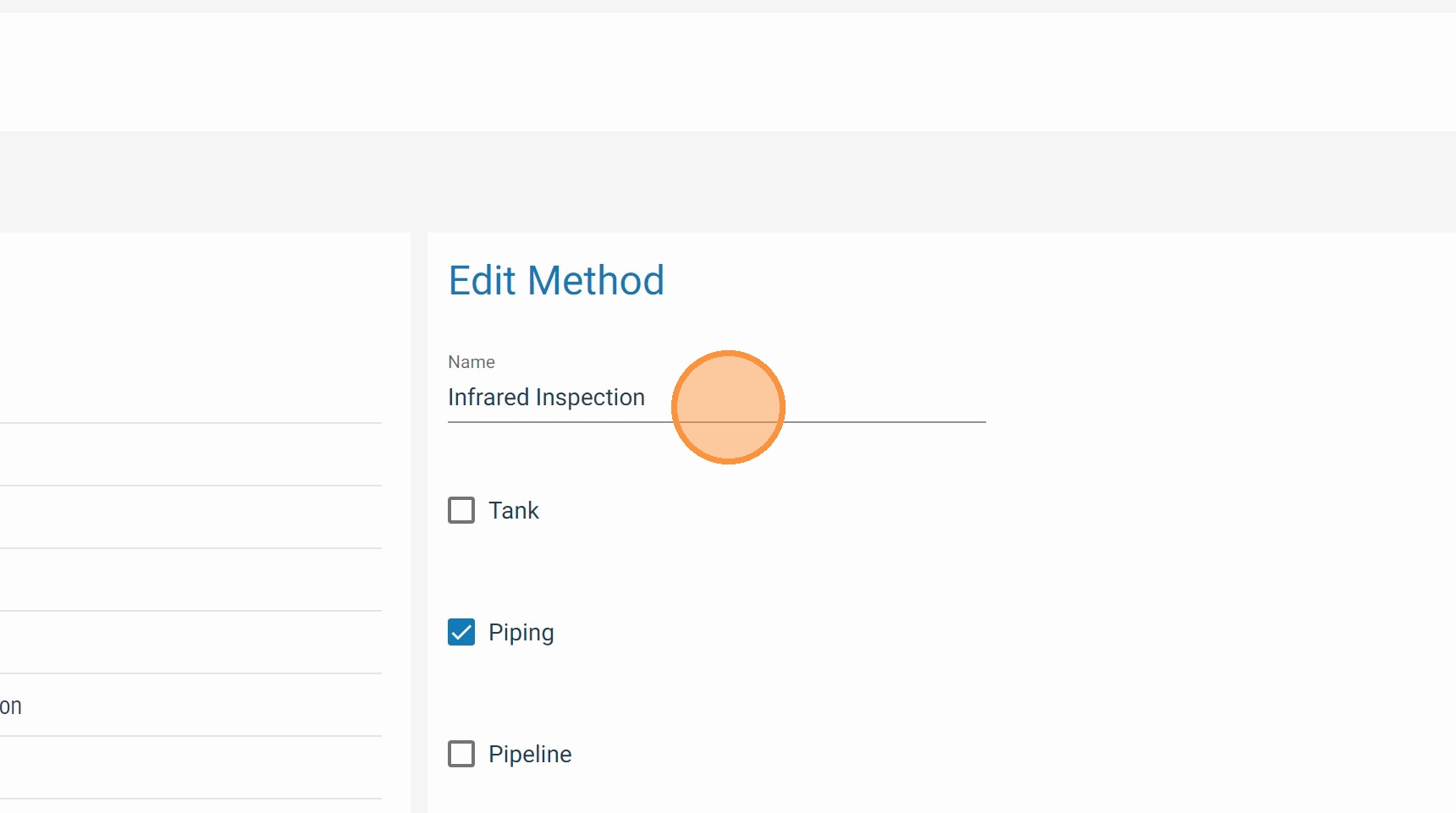
Update the method name as needed. Use your organization's standard inspection terminology — for example, "Ultrasonic Thickness (UT)" or "Visual Inspection (VT)" — to ensure consistency across schedules, tasks, and reports.
Edit Applicable Equipment and Asset Types if Required
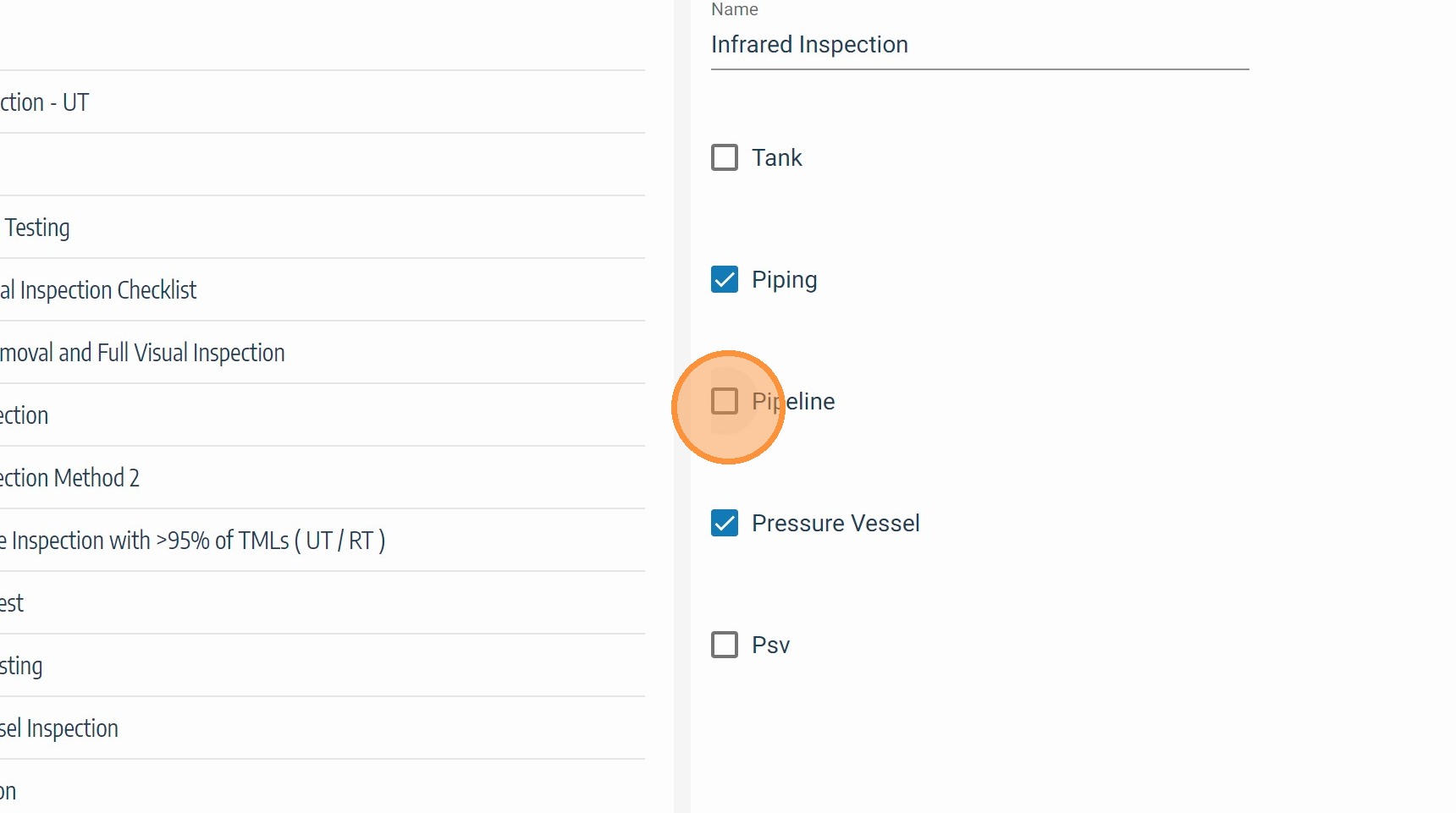
Add or remove equipment and asset type associations as needed. The method will only be available in schedule configuration for the asset types selected here. If a type is removed, the method will no longer appear as an option when scheduling inspections for that asset class.
Click Save
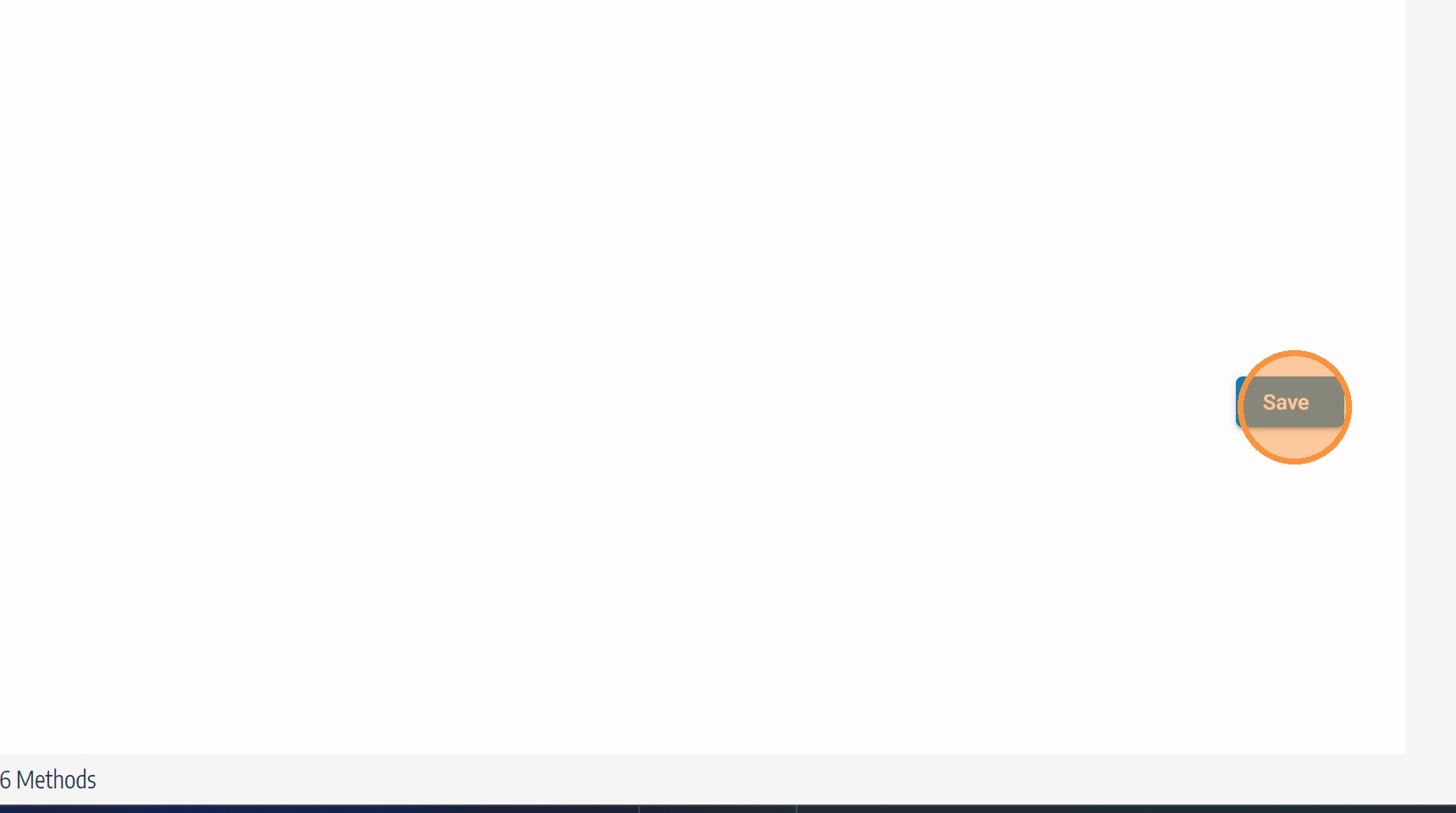
Click Save to apply the changes. Updated method name and asset type scope take effect immediately across TaskMaster schedule configuration.
Troubleshooting
| Symptom | Cause | Fix |
|---|---|---|
| Method not visible on existing schedules after name change | Page or schedule not refreshed | Refresh the schedule view to see the updated method name |
| Method missing from schedule configuration after edit | Asset type removed during edit | Re-edit the method and re-add the required asset type |
| Edit form not opening | Insufficient admin permissions | Contact your SHIELD administrator to confirm you have TaskMaster admin access |