
Edit Asset File Attachments
Update the description of a file attachment on an asset record in SHIELD.
Overview
This guide covers editing the description label of an existing file attachment on an asset record. Use this to correct a mislabeled attachment or add more specific identifying information without removing and re-attaching the file.
Editing an attachment only updates its description in SHIELD. The underlying file in SharePoint is not affected.
Steps
Open the Asset Info Edit Panel
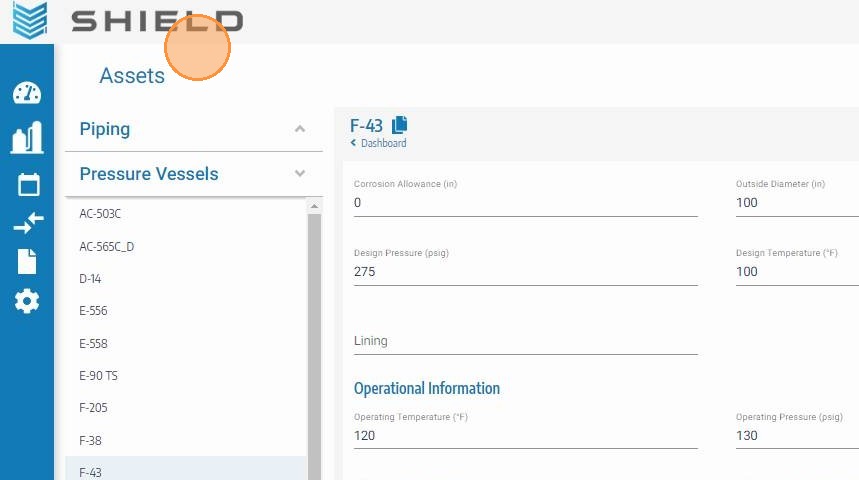
Navigate to the asset with the attachment you want to edit. Click the asset info edit button to open the asset detail and editing panel.
Click the Edit Arrow for the Attachment
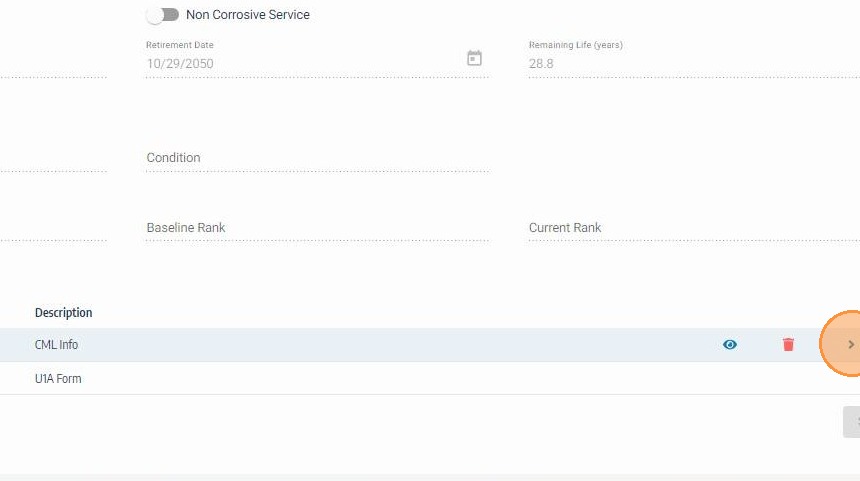
Scroll to the attachments section at the bottom of the panel. Locate the attachment you want to update and click its Edit arrow to open the attachment edit form.
Update the Attachment Description
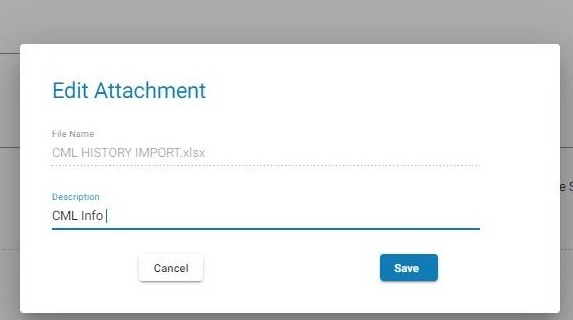
Clear the existing description and type the updated label. Use a clear, specific description — for example, "Hydrostatic Test Report — Rev 2 Mar 2024" — so team members can identify the file without opening it.
Click Save on the Attachment Form
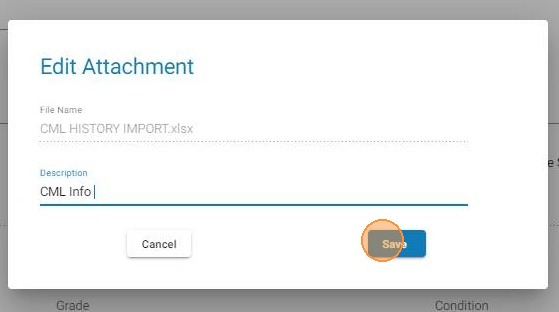
Click Save on the attachment form to confirm the updated description. This queues the change to be written to the asset record when the full asset save is completed in the next step.
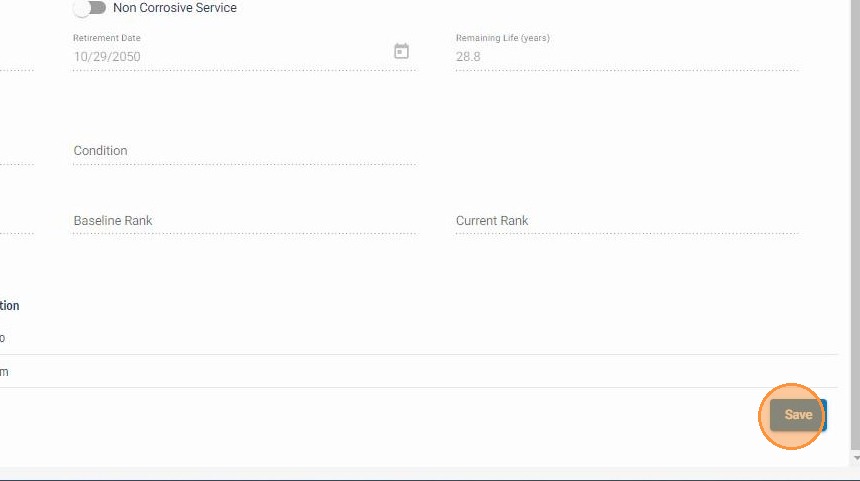
Click Save to Finalize the Asset Record
Click the main Save button to write the updated description to the asset record. The attachment list will refresh and display the new label.
Troubleshooting
| Symptom | Cause | Fix |
|---|---|---|
| Edit arrow not visible | Not hovering over the correct attachment row | Move the cursor directly over the attachment row to reveal action icons |
| Description reverts after saving | Main Save not clicked after the form Save | Ensure both Save actions are completed — form Save first, then main asset Save |
| Need to replace the file itself | Editing only updates the description, not the file | Delete the attachment and re-attach the updated file from SharePoint |