
View Asset File Attachments
Open and view files attached to an asset record in SHIELD. Behavior varies by file type — PDFs open in the browser, Office files open in your desktop application, and other formats are downloaded.
Overview
SHIELD opens attached files in different ways depending on the file type. Understanding how each file type behaves helps you know what to expect before clicking View — and how to handle first-time browser permission prompts.
| File Type | How It Opens |
|---|---|
| PDF, images | Opens in a new browser tab |
| Excel, Word, PowerPoint | Opens in your locally installed Office application |
| Other formats (e.g. DWG) | Downloads to your computer for opening locally |
Steps
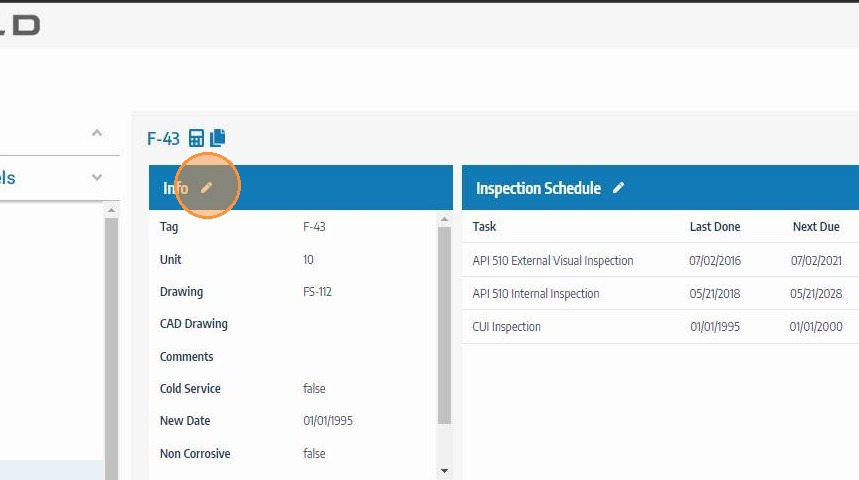
Open the Asset Info Edit Panel
Navigate to the asset whose attachments you want to view. Click the asset info edit button to open the asset detail panel where attachments are listed.
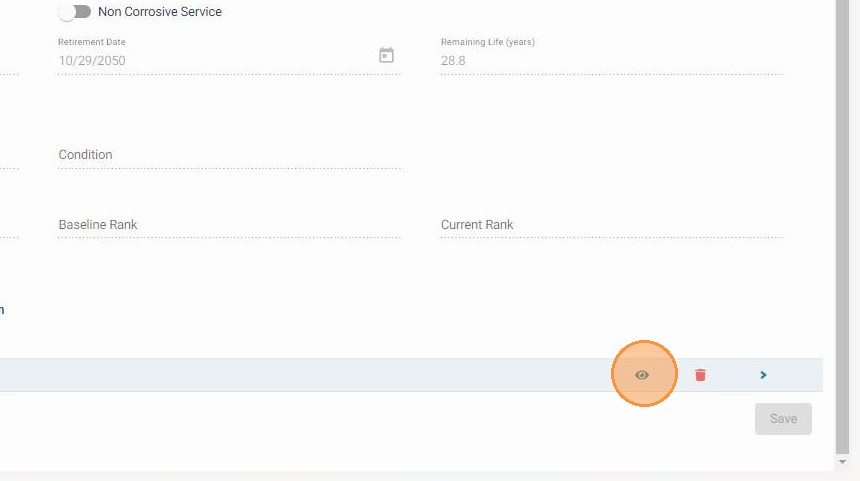
Hover Over the File and Click the View Icon
Scroll to the attachments section at the bottom of the panel. Hover over the file you want to open — the View icon will appear. Click it to open the file. The description label next to each attachment helps you identify the correct file before opening.
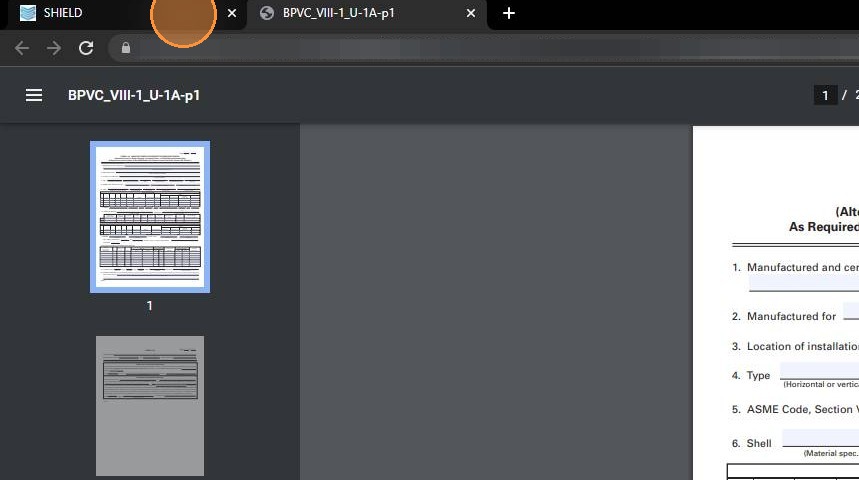
Browser-Compatible Files Open in a New Tab
Files that your browser can render natively — such as PDFs and images — will open automatically in a new browser tab. No additional software or permissions are required.
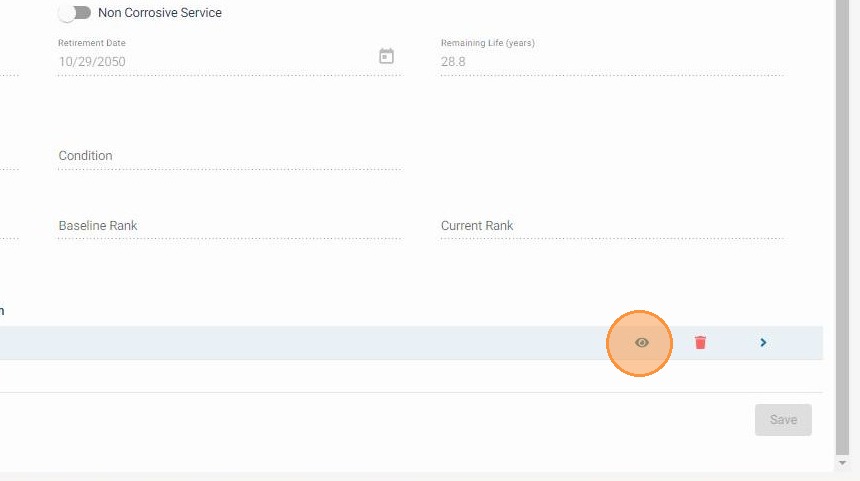
Microsoft Office Files Open in Your Desktop Application
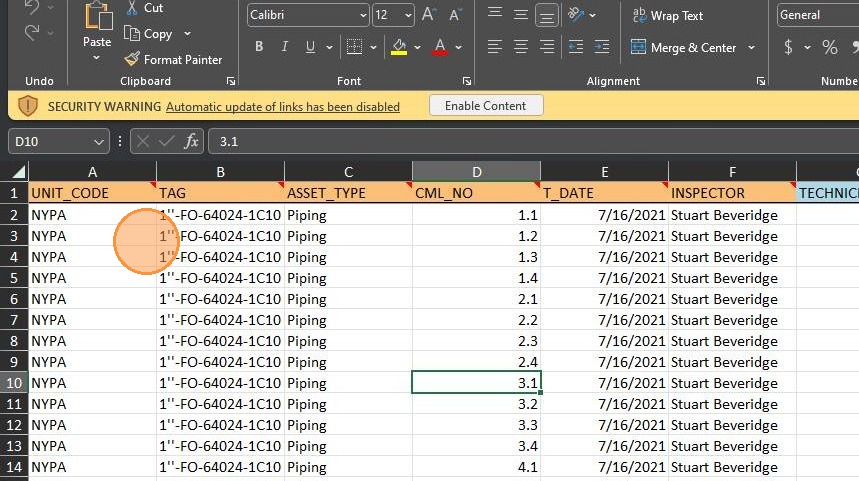
Excel, Word, and PowerPoint files are opened directly in your locally installed Office application. SHIELD triggers the handoff from the browser to the desktop app automatically — the file does not need to be downloaded manually first.
Allow Browser Permission to Open Desktop Applications
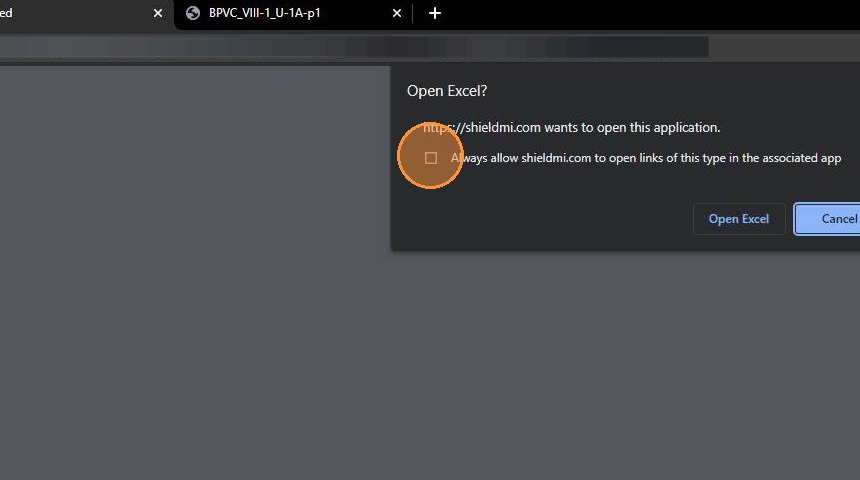
The first time you open an Office file, your browser may display a prompt asking permission to launch a locally installed program. Click Always Allow to prevent this prompt from appearing on every subsequent file open. This is a one-time browser setting per machine.
Edit and Save Directly from SharePoint
Once open in your desktop Office application, the file is loaded directly from SharePoint. This means multiple users can open and edit the file simultaneously — edits are saved back to SharePoint in real time and the updated version is immediately reflected for all viewers. There is no need to re-upload after making changes.
Other File Types Are Downloaded for Local Opening
If the file is neither browser-renderable nor a Microsoft Office format — for example, AutoCAD DWG files, specialized engineering formats, or compressed archives — SHIELD will trigger a browser download. Once downloaded, open the file using the appropriate locally installed application on your computer.