
Generate Assets Import Template
Download a pre-formatted Excel template from SHIELD to prepare and import asset data for one or more equipment types.
Overview
The Assets Import Template is a pre-formatted Excel file generated directly from SHIELD. It includes the correct column structure, dropdown validations, and row formatting for each asset type you select—ensuring your data is import-ready before you upload it.
Steps
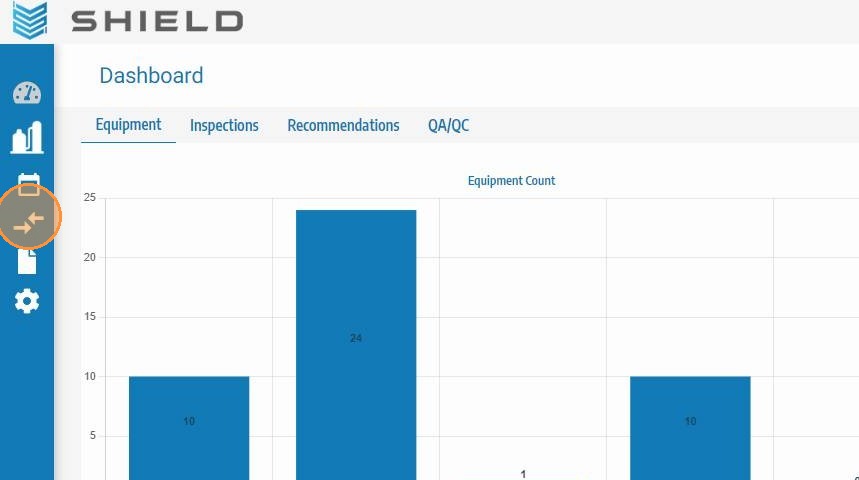
Click the Import/Export Icon
From the Assets page, locate and click the Import/Export icon in the toolbar. This opens the import and export options panel for the Assets module.
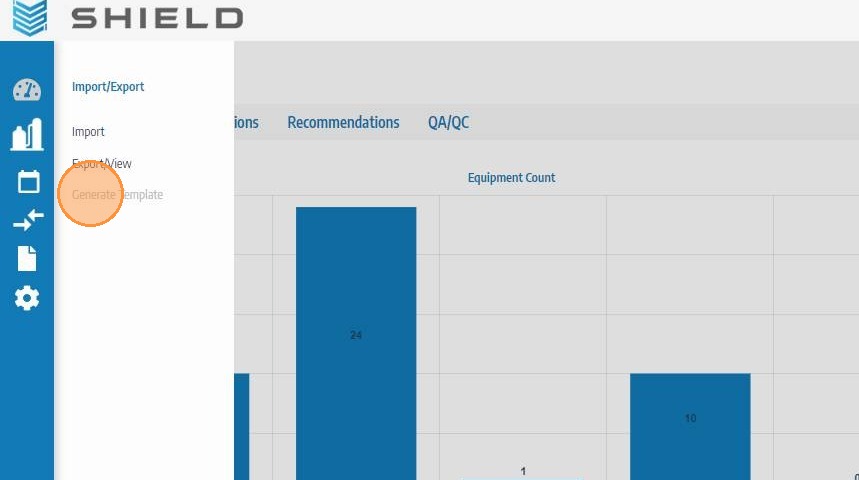
Click Generate Template
In the panel that opens, click Generate Template. This starts the template configuration workflow where you select which asset types and row counts to include.
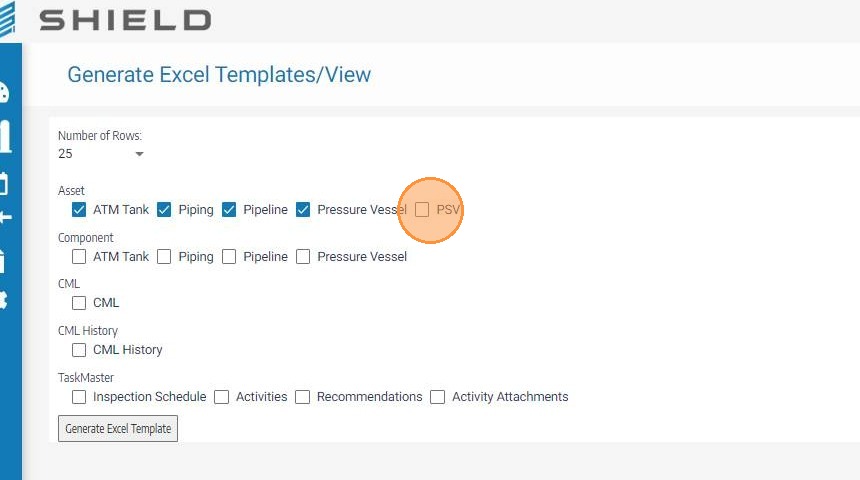
Select Asset Types to Include
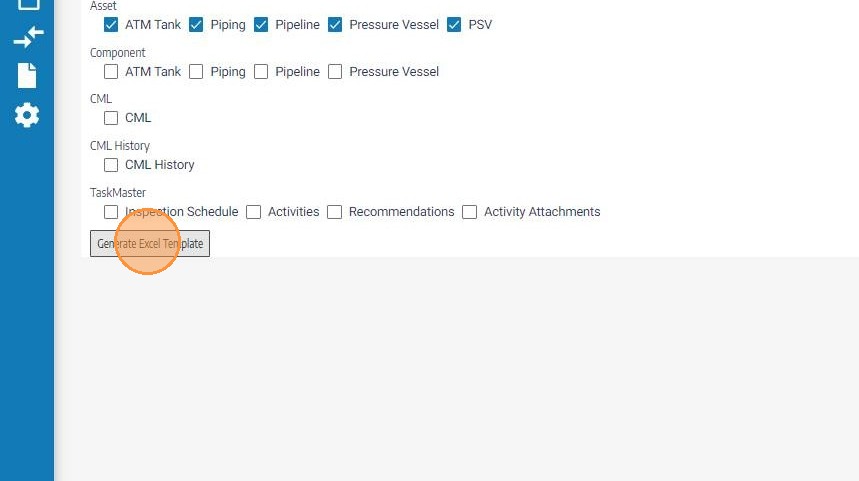
Check the boxes next to each asset type you want to import — for example, piping, pressure vessels, heat exchangers, or storage tanks. Only the types you select will have dedicated sheets and column formatting in the generated template.
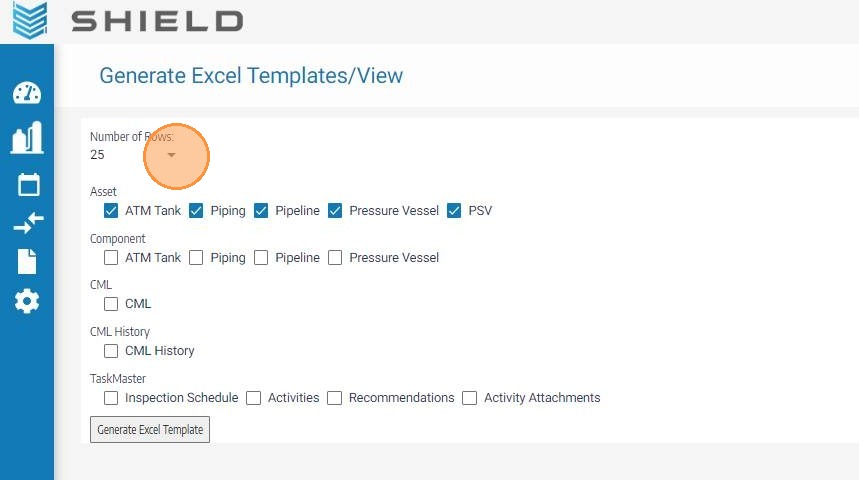
Set the Maximum Row Count per Asset Type
For each selected asset type, choose the maximum number of rows you plan to import in a single batch. This number determines how many rows are pre-formatted with data validation in the template. Set this to match or slightly exceed your expected record count — rows beyond this limit will not have validation applied.
Click Generate Excel Template
Click Generate Excel Template to build the file based on your selections. SHIELD will compile the template with the correct headers, sheet tabs, and pre-applied validation for each asset type.
Open the Downloaded Template File
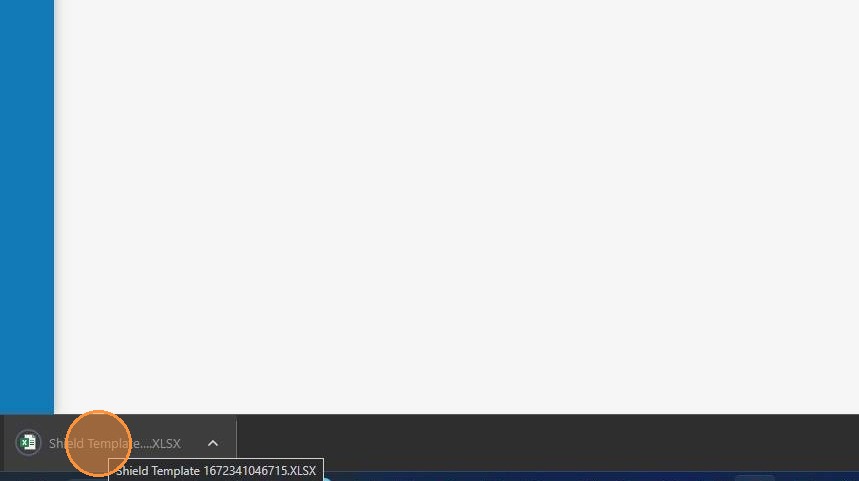
The template will download automatically to your browser's default download location. Locate the file and open it in Microsoft Excel to begin populating your asset data.
Enable Editing in Excel
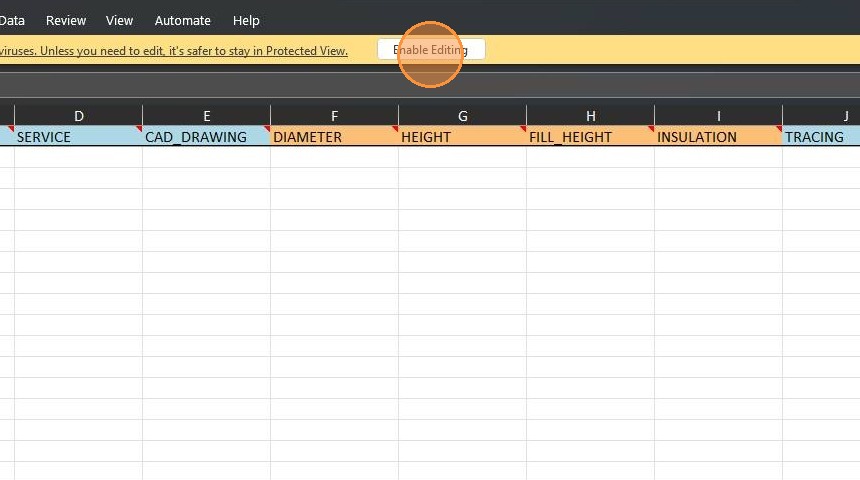
When the file opens, Excel may display a Protected View banner. Click Enable Editing to unlock the file for data entry. This is required before you can enter asset data into the template.
Do not add, remove, or rename column headers in the template. SHIELD's import process maps data by column name — any changes will cause import errors or misaligned data.
Troubleshooting
| Symptom | Cause | Fix |
|---|---|---|
| Template downloads but won't open | File blocked by browser or antivirus | Check your downloads folder and allow the file if prompted by your security software |
| Asset type missing from template | Type was not checked during configuration | Regenerate the template and select the missing asset type |
| Enable Editing not visible | File already in editing mode | No action needed — you can begin entering data directly |