
Search Assets
Use the asset search to quickly locate equipment by name or identifier within a selected unit in SHIELD.
Overview
The asset search allows you to find specific equipment within a unit without manually browsing the full asset tree. Results are filtered in real time as you type, grouped by asset type for easy navigation.
A minimum of four characters is required before the search returns results. This applies to asset names, IDs, and any descriptive text associated with the asset.
Steps
Navigate to the Assets Page
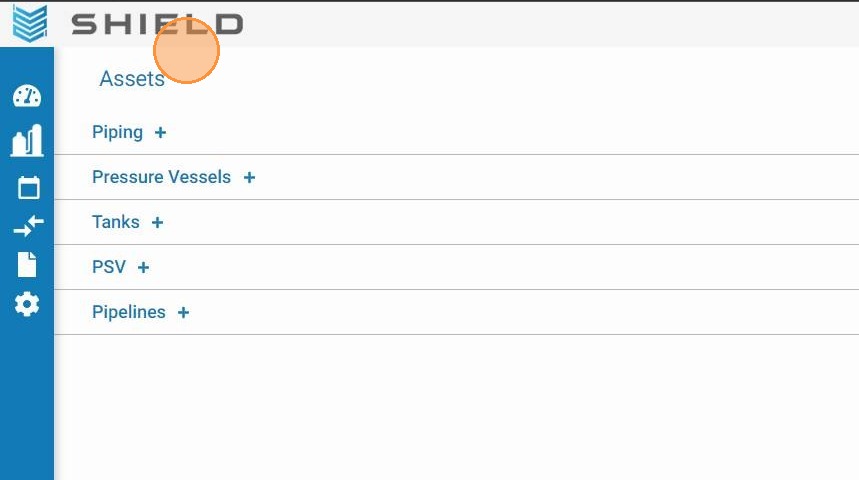
From the main SHIELD menu, open the Assets module. This is your starting point for browsing and searching all equipment records within your current site and scope context.
Select a Unit and Open the Search Box
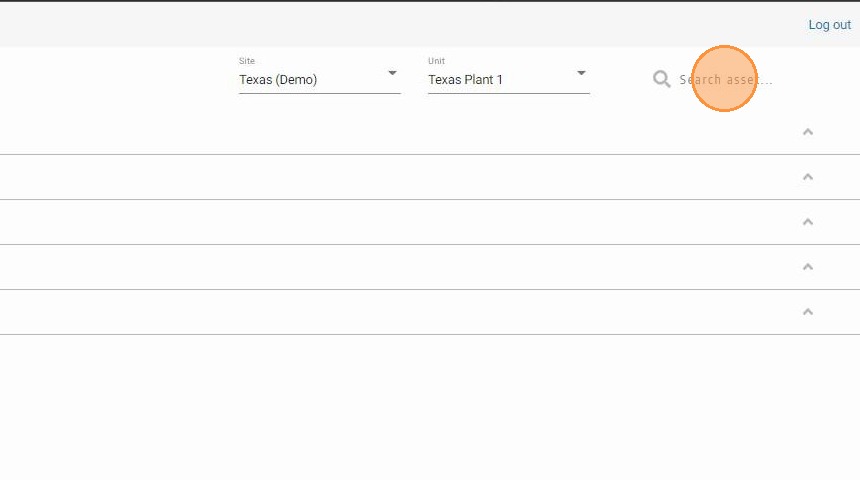
Use the unit selector to choose the unit you want to search within. Once selected, click the search box on the right side of the unit selector to activate it. Scoping your search to a unit ensures results are relevant to the correct process area.
Type Your Search Term
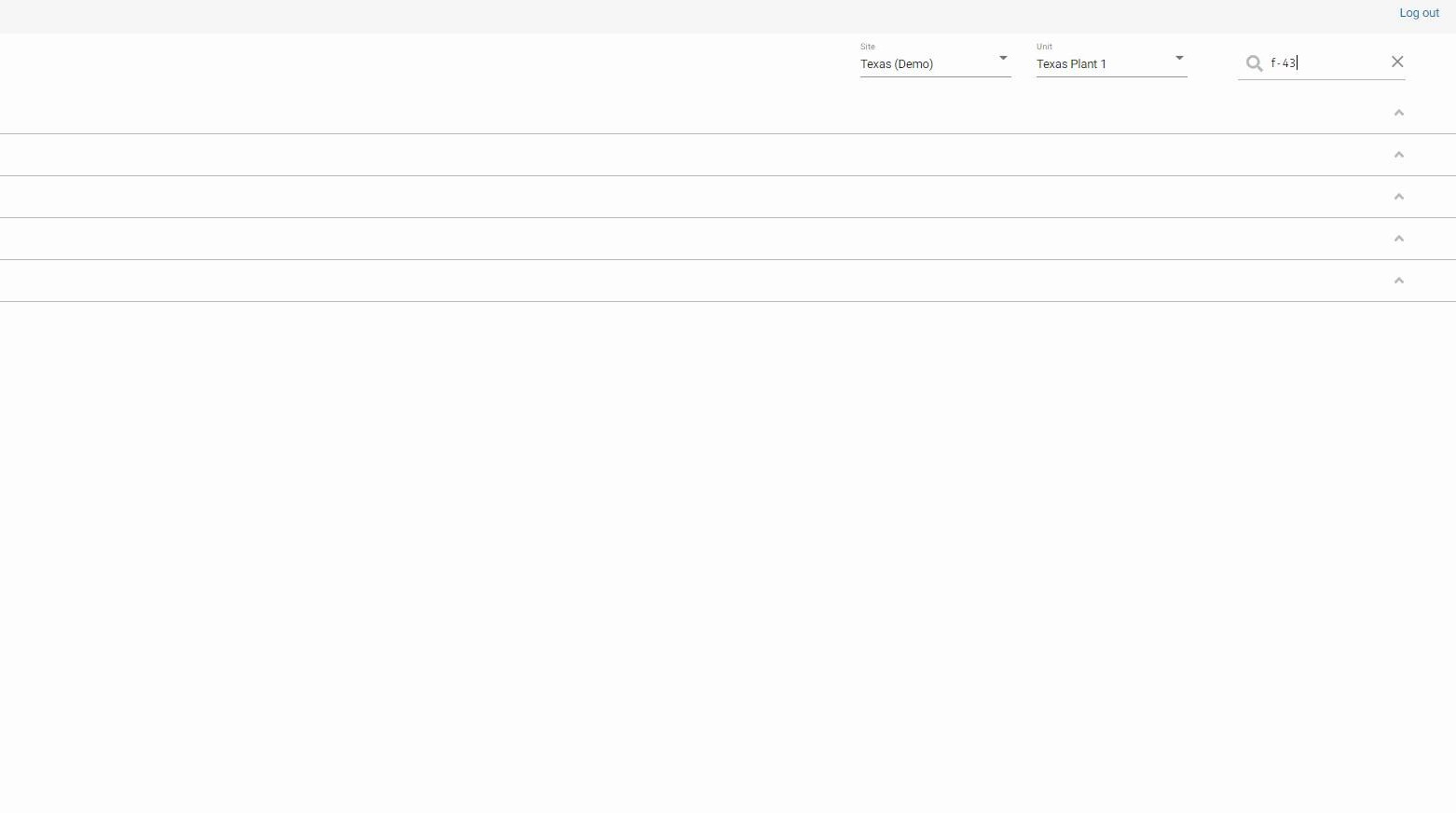
Enter the asset name, tag number, or identifying phrase you want to find. Type at least four characters to trigger the search. The more specific your term, the narrower the results.
Review the Matching Results
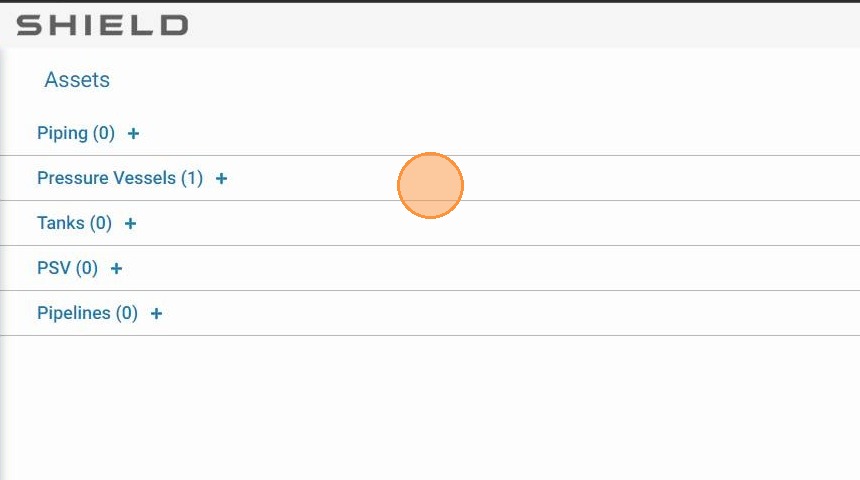
The assets list updates to show only records that match your search term. A count of matching assets is displayed so you can quickly assess how many results were found before drilling in.
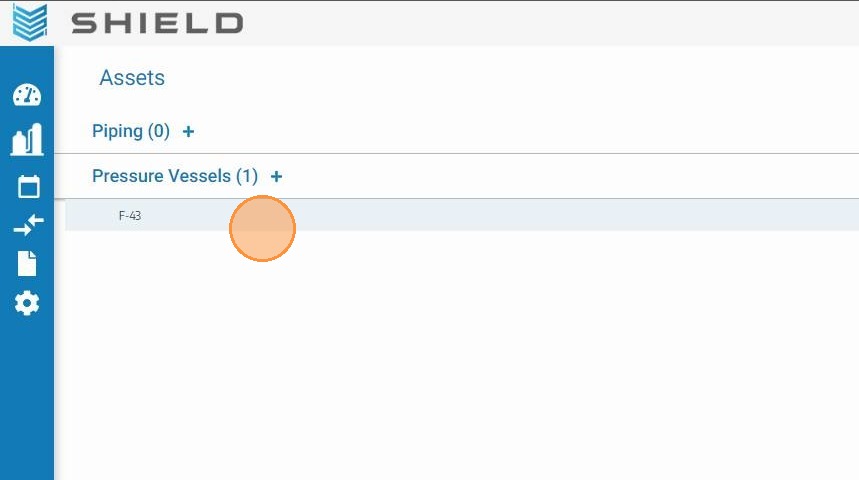
Expand an Asset Type and Select the Asset
Results are grouped by asset type (e.g., piping, pressure vessels, storage tanks). Click the asset type group to expand it, then select the specific asset you want to view. This opens the full asset detail record.
Troubleshooting
| Symptom | Cause | Fix |
|---|---|---|
| No results returned | Fewer than four characters entered | Type at least four characters before expecting results |
| Expected asset not showing | Wrong unit selected | Verify the correct unit is active in the unit selector |