
Remove Asset Attachment
Remove a file attachment from an asset record in SHIELD.
Overview
This guide covers removing a file attachment link from an asset record. Removing an attachment only unlinks the file from the asset in SHIELD — the original file in SharePoint is not deleted.
Removing an attachment cannot be undone. If the file needs to be re-associated with the asset after removal, you will need to re-attach it manually using Attach File to Assets or Upload Asset File Attachment.
Steps
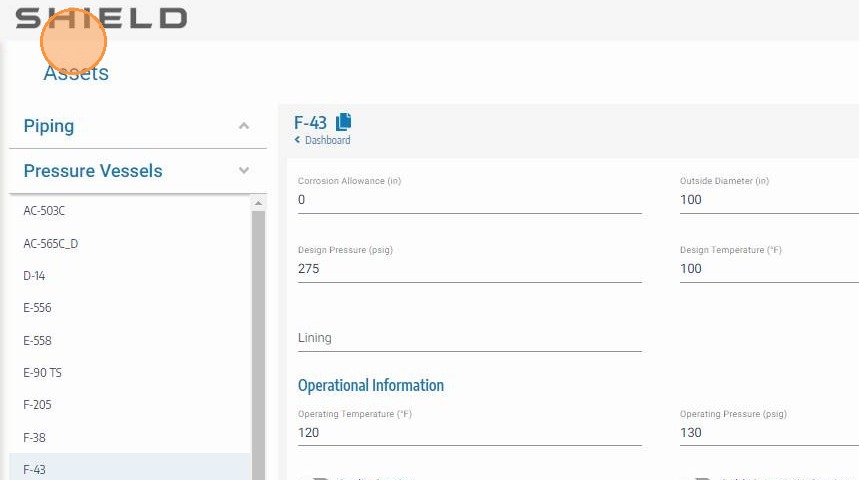
Open the Asset Info Edit Panel
Navigate to the asset with the attachment you want to remove. Click the asset info edit button to open the asset detail and editing panel.
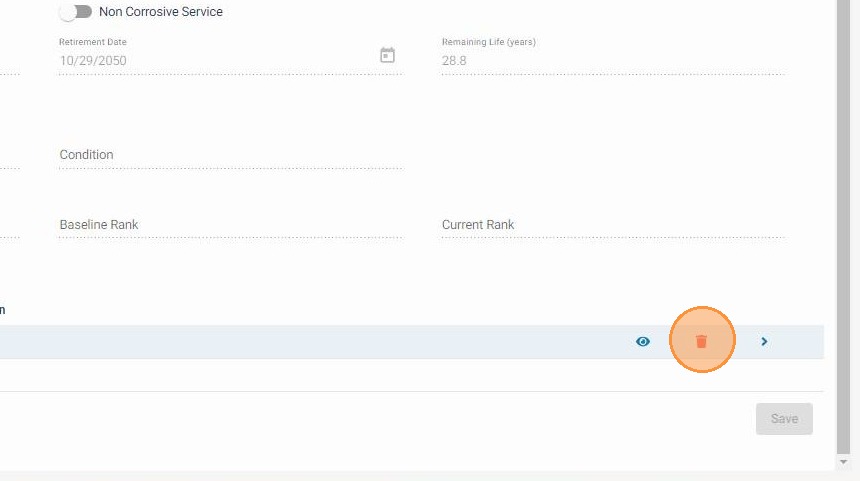
Click the Red Trash Icon Next to the Attachment
Scroll to the attachments section at the bottom of the panel. Locate the attachment you want to remove and click the red trash icon next to it. The attachment will be marked for removal — it is not yet deleted until the asset record is saved in the next step.
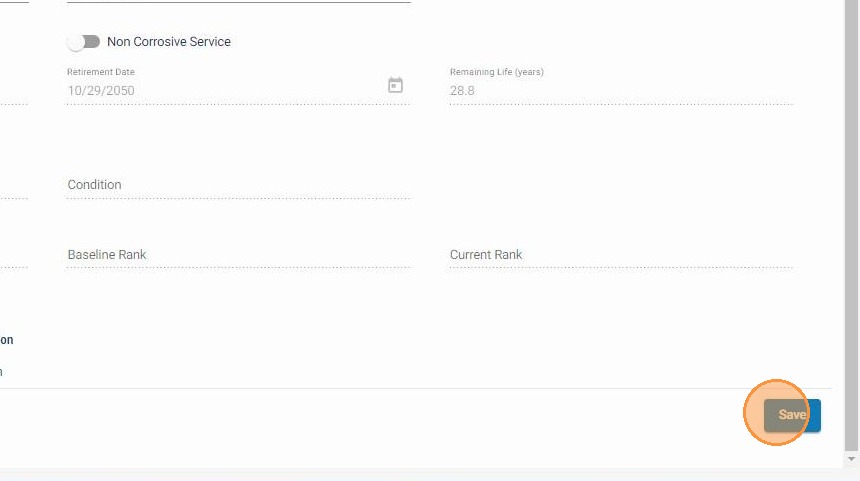
Click Save to Finalize the Removal
Click the main Save button to write the change to the asset record. The attachment will be removed from the asset and will no longer appear in the attachments list.
Troubleshooting
| Symptom | Cause | Fix |
|---|---|---|
| Trash icon not visible | Not hovering over the attachment row | Move the cursor directly over the row to reveal action icons |
| Attachment still showing after save | Page not refreshed after save | Refresh the asset record to confirm the removal |
| Need to restore a removed attachment | Removal cannot be undone in SHIELD | Re-attach the file from SharePoint using the Attach File to Assets guide |