
Add Inspectors
Add inspector records to SHIELD so they can be assigned to inspection tasks, schedules, and QA/QC workflows.
Overview
Inspector records in SHIELD store the personnel details used to assign and track inspection work. Inspectors must be added before they can be selected on inspection tasks, schedules, or QA/QC sign-offs. This is a settings-level configuration typically completed by an administrator during initial setup or when onboarding new personnel.
Steps
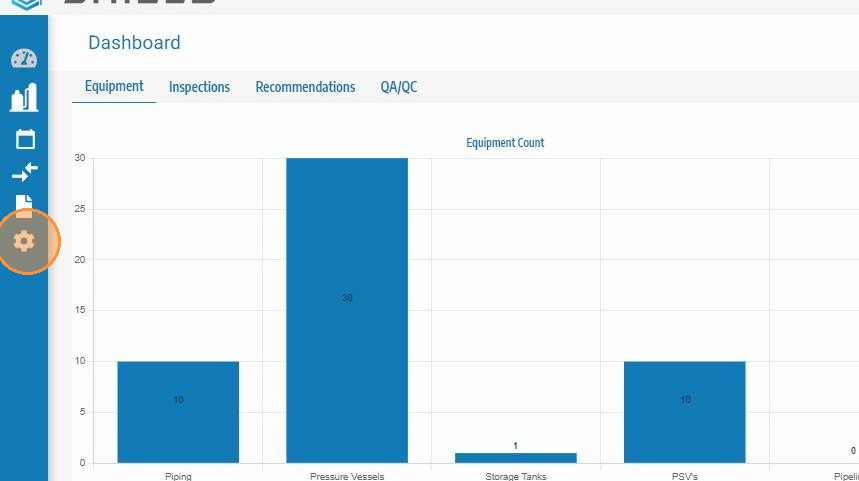
Open Settings
Click the Settings icon in the main navigation to access system configuration options.
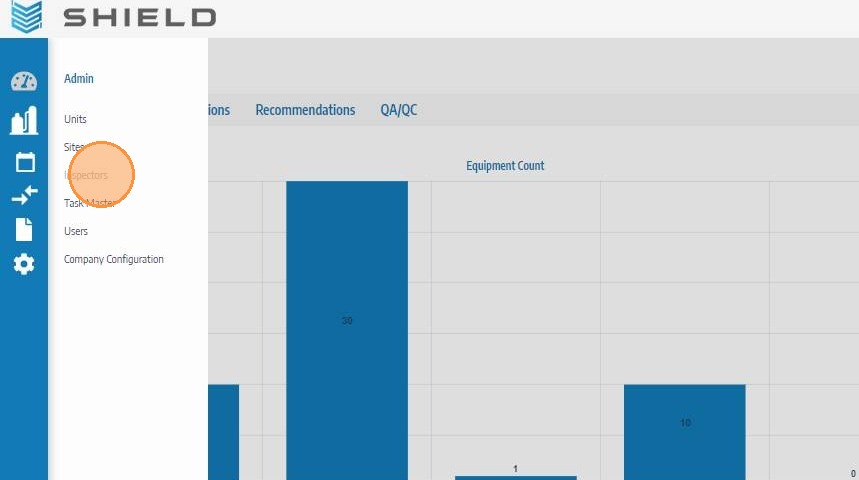
Navigate to Inspectors
In the Settings menu, click Inspectors to open the inspector management list. All existing inspector records for your site are displayed here.
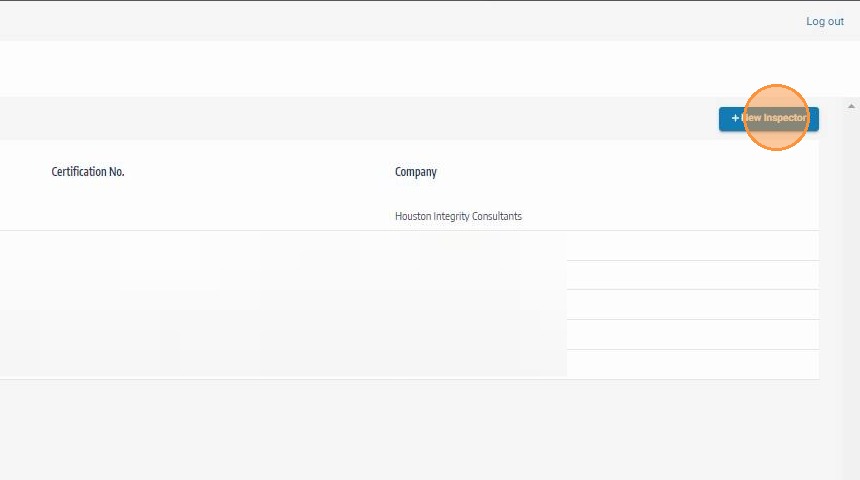
Click New Inspector
Click + New Inspector to open the inspector creation form.
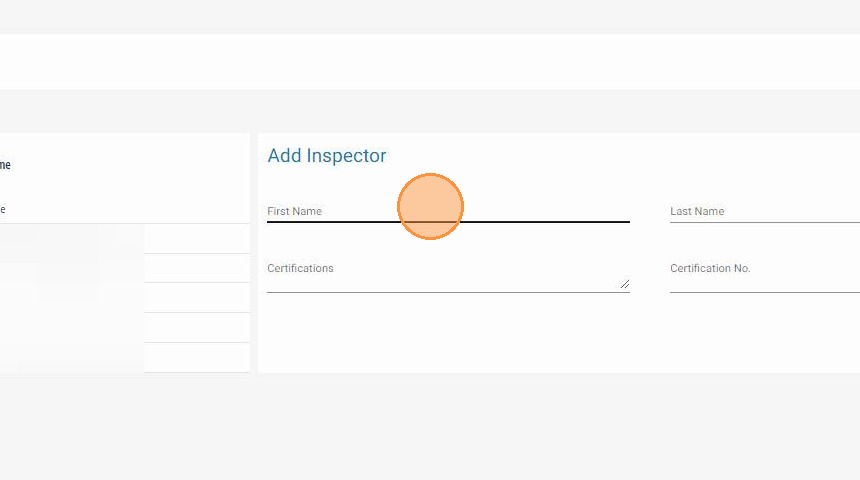
Complete the Inspector Information
Fill in the required fields for the new inspector. Include name, certification details, and any other fields marked as required. Accurate certification data is important — it is referenced in QA/QC workflows and inspection sign-off records.
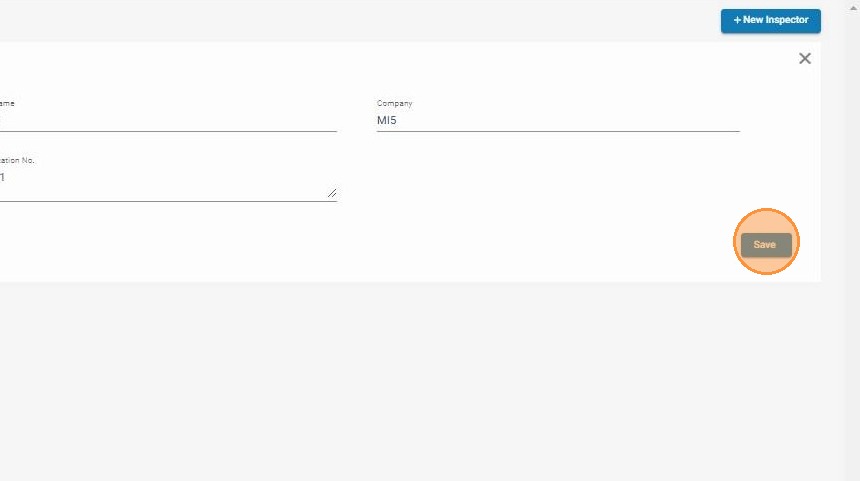
Click Save
Click Save to create the inspector record. The new inspector will appear in the inspectors list and become available for assignment across inspection tasks, schedules, and QA/QC workflows.
Troubleshooting
| Symptom | Cause | Fix |
|---|---|---|
| Inspector not appearing in task assignment dropdowns | Record not yet saved or page not refreshed | Confirm Save was clicked and refresh the page |
| Required fields preventing save | Mandatory fields left blank | Check for highlighted or flagged fields and complete all required entries |
| Duplicate inspector records | Inspector added more than once | Search the inspector list before creating a new record to check if they already exist |