
Edit Inspectors
Update an existing inspector record in SHIELD to correct or maintain personnel details, certifications, and assignment information.
Overview
Use this guide to update an existing inspector record — for example, to correct a name, update certification details, or change contact information. Edits are reflected immediately across any inspection tasks and workflows the inspector is assigned to.
Steps
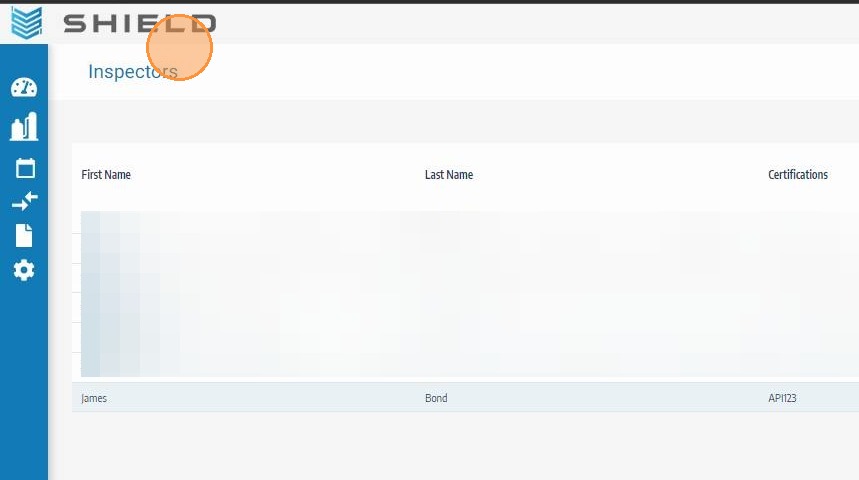
Navigate to the Inspectors Management Screen
Open Settings and click Inspectors to access the inspector management list. All existing inspector records for your site are displayed here. Locate the inspector you want to edit.
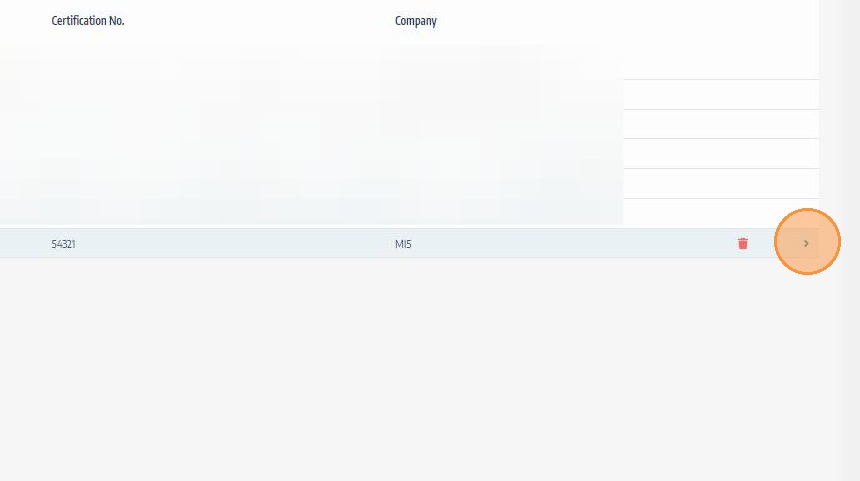
Click the Edit Icon for the Inspector
Click the edit icon next to the inspector record you want to update. This opens the inspector detail form with all current fields available for editing.
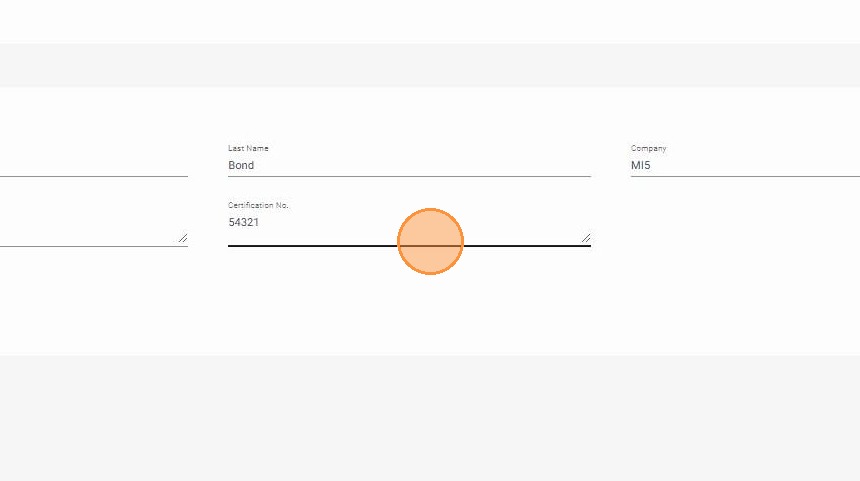
Update the Inspector Information
Make the necessary changes to the inspector's details — such as name, certification number, expiry date, or contact information. Review all fields before saving to ensure accuracy, as this data is referenced in QA/QC sign-offs and inspection records.
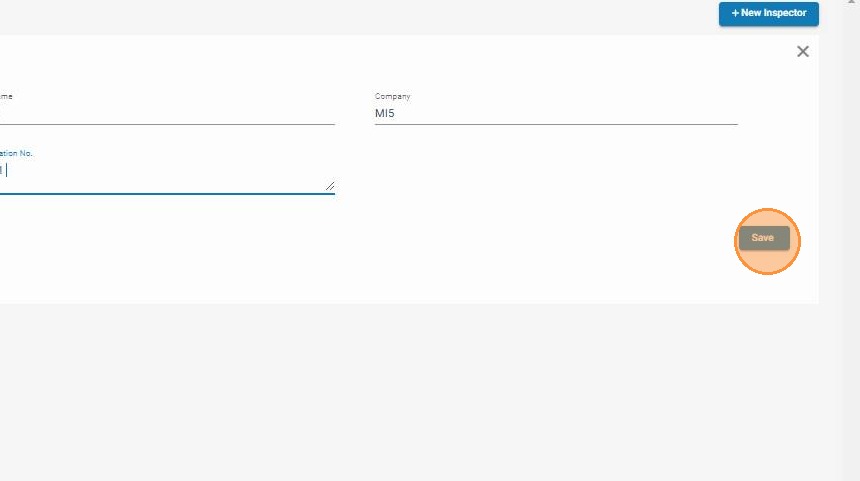
Click Save
Click Save to write the updated details to the inspector record. The changes will be reflected immediately across all workflows where this inspector is assigned.
Troubleshooting
| Symptom | Cause | Fix |
|---|---|---|
| Edit icon not visible | Insufficient user permissions | Contact your SHIELD administrator to confirm you have settings-level edit access |
| Changes not reflected on inspection records | Page not refreshed after save | Refresh the relevant inspection or task records to see updated inspector details |
| Required field preventing save | Mandatory field cleared during editing | Check for highlighted fields and restore or update the required value before saving |