
Edit CML
Update the details of an existing Corrosion Measurement Location (CML) on an asset record in SHIELD.
Overview
Use this guide to edit an existing CML — for example, to correct an ID, update the description to improve field locatability, reassign it to a different component, or add contextual notes. Edits to a CML's identifying fields are reflected immediately across inspection records and reports that reference it.
Changing the component assignment of a CML will move all associated measurement history to the newly selected component. This affects corrosion rate and remaining life calculations on both the old and new component. Confirm the reassignment is intentional before saving.
Steps
Navigate to the Asset and Open CML Editing Mode
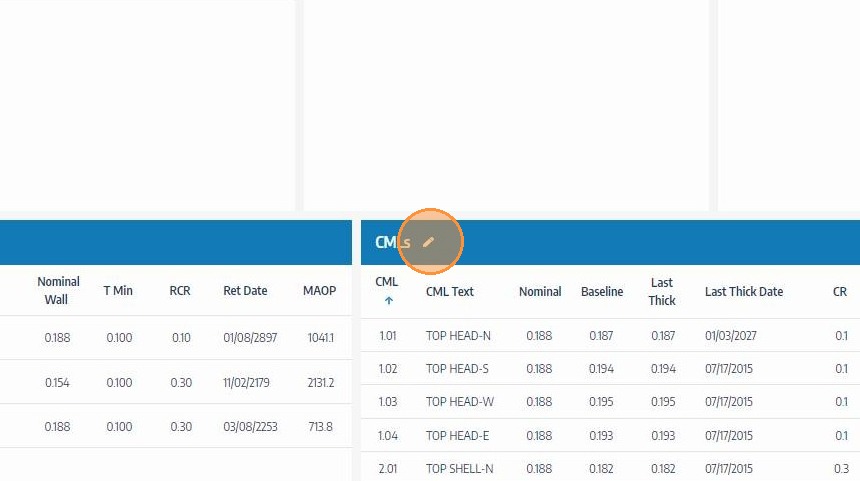
Go to the asset containing the CML you want to edit. Click the edit icon on the CMLs header to enter CML editing mode and unlock the table for modifications.
Locate the CML and Click Its Edit Icon
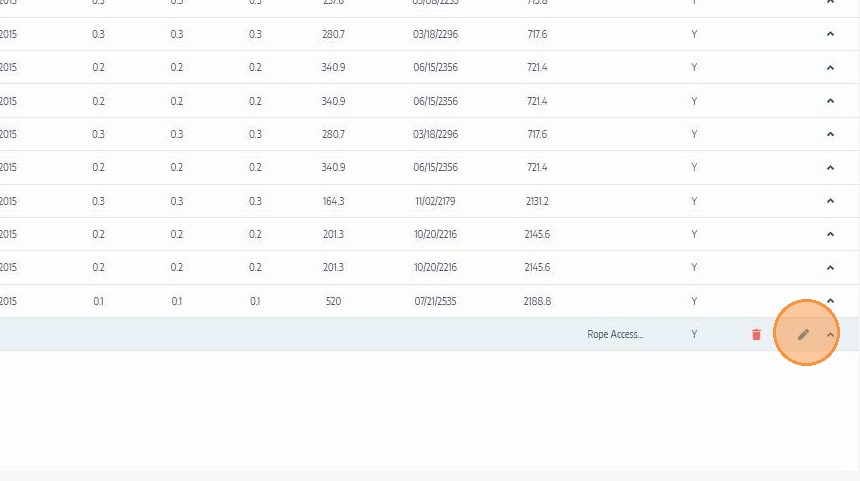
Find the CML row you want to update — use the CML ID or description to confirm you have the correct record. Click the edit icon for that row to open the CML's fields for editing.
Update the CML Information
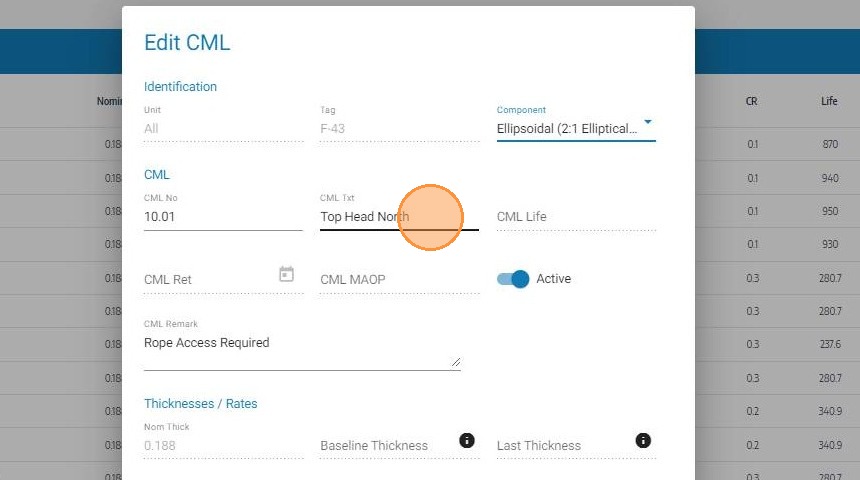
Edit the fields that require updating — such as CML number, description, component assignment, or comments. See the Create a CML field reference for a description of each field. Ensure the description remains precise enough for inspectors to locate the measurement point in the field.
Click Save
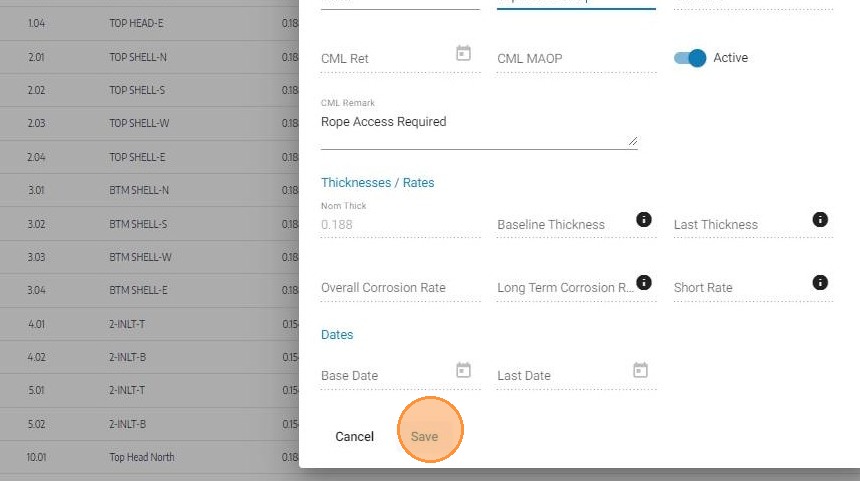
Click Save to write the updated CML data to the asset record. Changes will be reflected immediately in inspection records, reports, and any workflows that reference this CML.
Troubleshooting
| Symptom | Cause | Fix |
|---|---|---|
| Edit icon not visible on CML row | CML editing mode not activated | Click the edit icon on the CMLs section header first |
| CML ID change not reflected on inspection records | Page not refreshed after save | Refresh the relevant inspection records to see the updated CML ID |
| Component reassignment affecting calculations unexpectedly | Measurement history moved to new component | Review corrosion rate and remaining life data on both the old and new component after saving |
| Changes not saving | Required field cleared during editing | Check for highlighted fields and restore or update the required value before saving |