
Delete Inspectors
Permanently remove an inspector record from SHIELD.
Overview
Use this guide to delete an inspector record that is no longer needed — for example, when a personnel member has left the organization. Deletion is permanent and cannot be undone.
Deleting an inspector record cannot be undone. Before proceeding, confirm the inspector is not currently assigned to any active inspection tasks or schedules. If they are, reassign those tasks first or consider using Edit Inspectors to update their record instead of deleting it.
Steps
Navigate to the Inspectors Management Screen
Open Settings and click Inspectors to access the inspector management list. Locate the inspector record you want to delete.
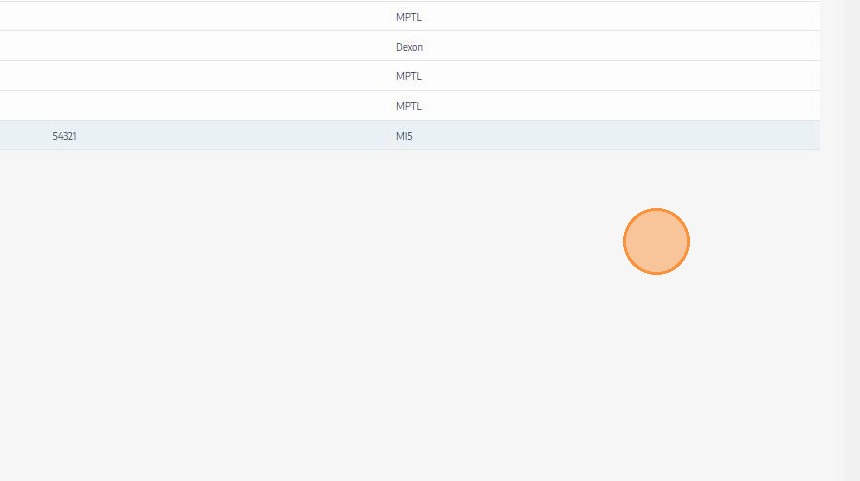
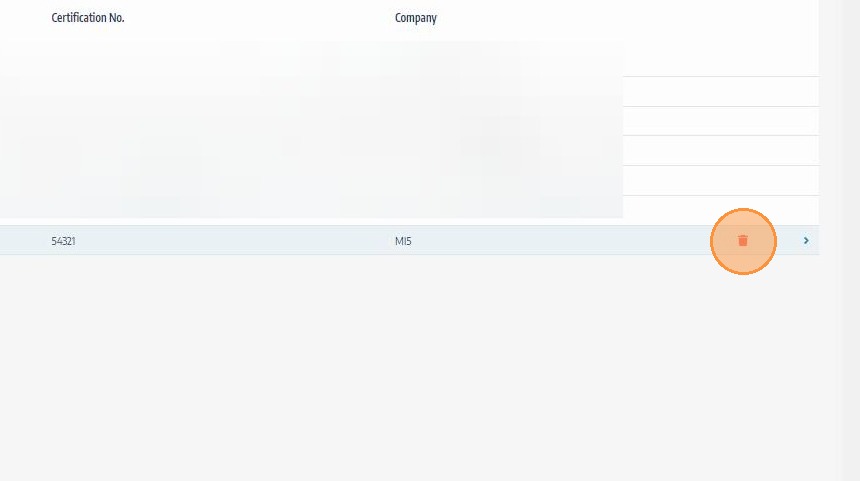
Click the Delete Icon for the Inspector Record
Click the delete icon next to the inspector you want to remove. A confirmation prompt will appear before the record is deleted.
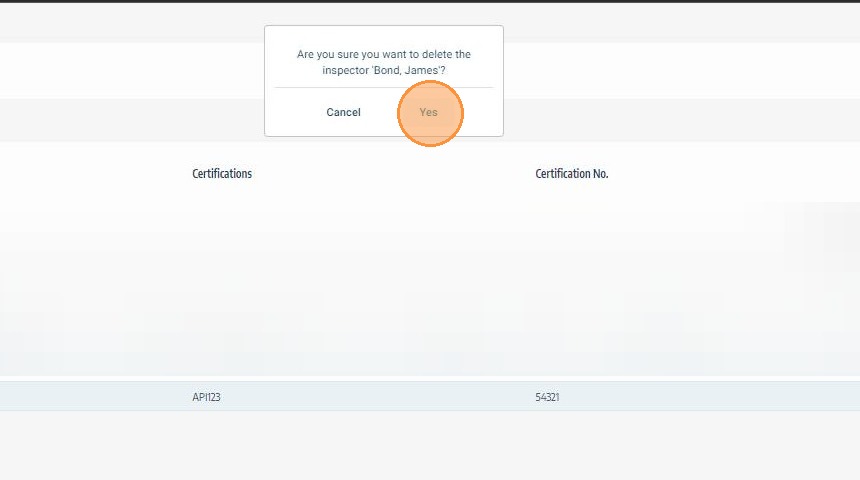
Confirm the Deletion
Review the confirmation prompt and click Confirm to permanently delete the inspector record. The record will be removed from the inspectors list and will no longer be available for assignment in any workflow.
Troubleshooting
| Symptom | Cause | Fix |
|---|---|---|
| Delete icon not visible | Insufficient user permissions | Contact your SHIELD administrator to confirm you have settings-level delete access |
| Inspector still appearing after deletion | Page not refreshed | Refresh the inspectors list to confirm the record has been removed |
| Need to restore a deleted inspector | Deletion cannot be undone | Re-add the inspector manually using the Add Inspectors guide |