
Edit CML History
Correct or update an existing thickness measurement reading in a CML's history in SHIELD.
Overview
Use this guide to edit an existing CML history reading — for example, to correct a transcription error, update the inspection date, change the inspector, or revise measurement method details. Any change to the measured thickness or inspection date will trigger a recalculation of the CML's corrosion rate and remaining life.
Editing a thickness reading or inspection date will update the CML's corrosion rate and remaining life calculations immediately on save. If the reading being corrected is part of a long history, verify that the recalculated values remain consistent with expected integrity trends before closing the record.
Steps
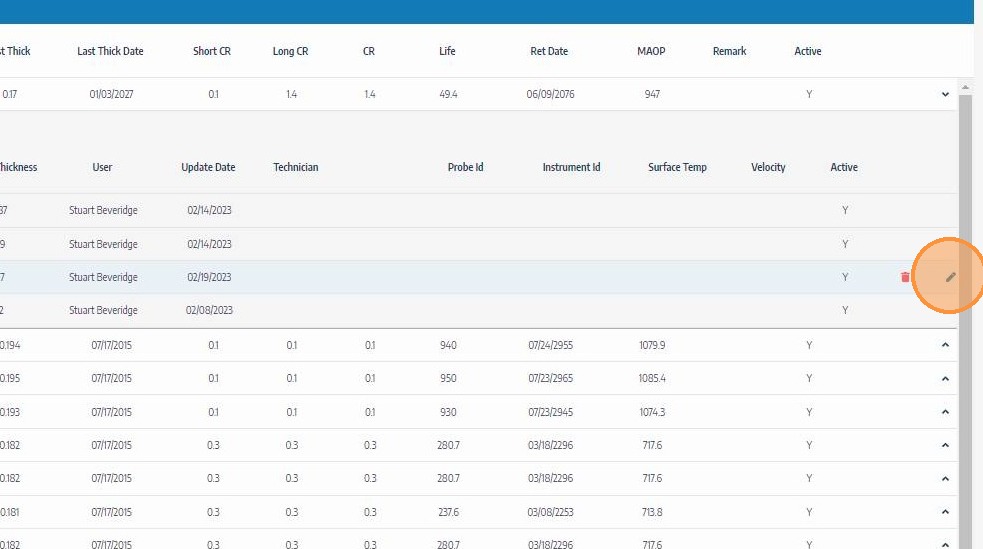
Navigate to the CML History Reading and Click the Edit Icon
Go to the asset, open CML editing mode by clicking the edit icon on the CMLs header, then click the CML row to expand its history. Locate the specific reading you want to correct and click its edit icon to open the fields for editing.
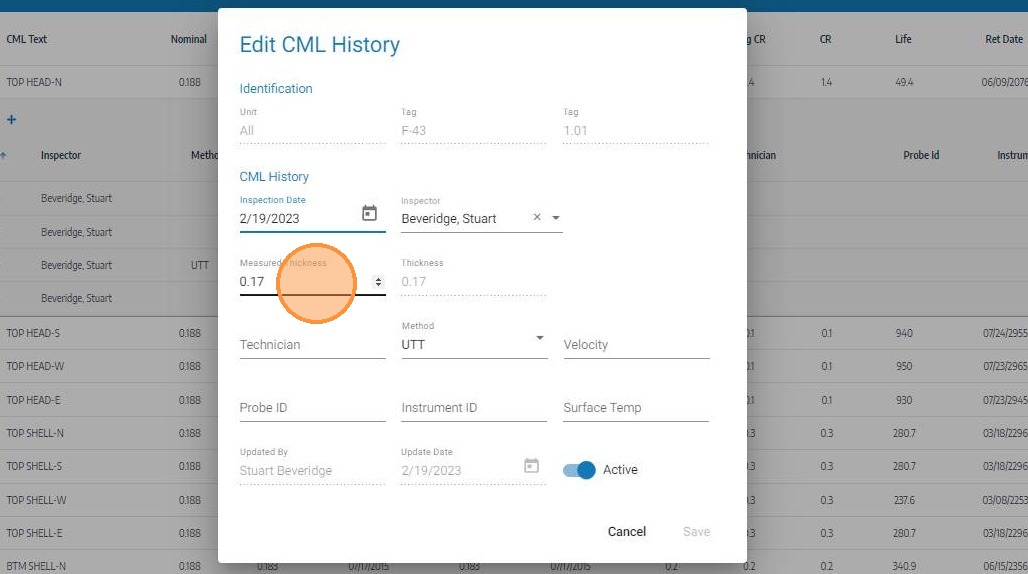
Update the Reading Data
Edit the fields that require correction — such as inspection date, inspector, measured thickness, measurement method, or device information. Confirm the corrected values against your source data (field sheets, inspection reports) before saving to ensure the history record is accurate.
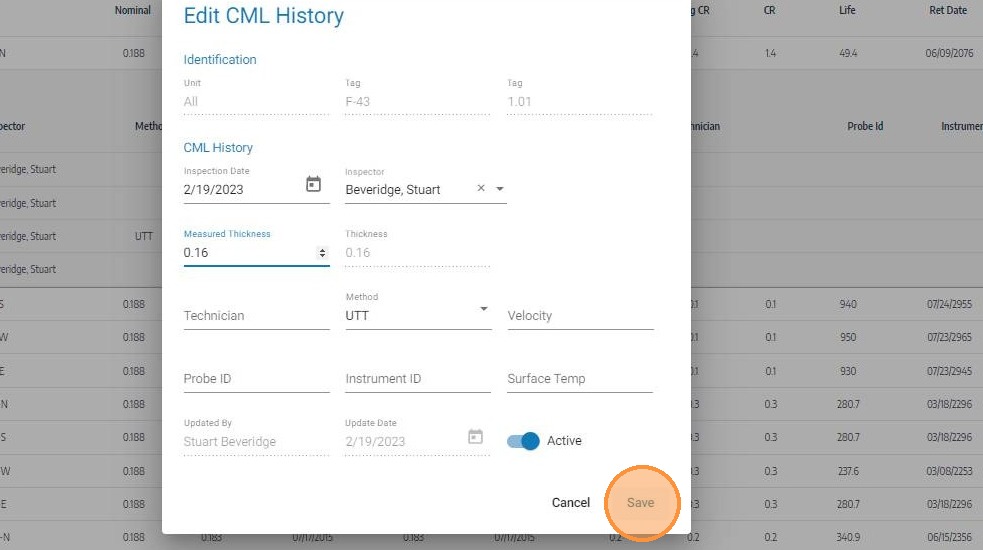
Click Save
Click Save to write the corrected reading to the CML history. SHIELD will immediately recalculate the corrosion rate and remaining life for the parent component using the updated data. Review the recalculated values to confirm they are consistent with the asset's expected integrity profile.
Troubleshooting
| Symptom | Cause | Fix |
|---|---|---|
| Edit icon not visible on history row | CML editing mode not activated | Click the edit icon on the CMLs section header, then expand the CML row before editing history |
| Corrosion rate changed unexpectedly after edit | Thickness or date correction altered the rate calculation | Review the full CML history to verify the corrected reading is consistent with surrounding data points |
| Inspector field not showing the required person | Inspector not configured in SHIELD | Add the inspector under Settings → Inspectors — see Add Inspectors |
| Changes not saving | Required field cleared during editing | Check for highlighted fields and restore or update the required value before saving |